Regional Settings and Jurisdiction
Regional settings decide how dates and times are shown in SAR Portal and which country’s data protection law your cases follow. If your organization is established in more than one jurisdiction, for example the UK and an EU country, you can also set a governing country on each case.
Who Can Use This
- Regional Settings (in Settings): Admins only, like the rest of Settings.
- Governing law and Internal Target (on the case page): Admins and Case Managers, on a case that is still open and not anonymized.
These settings are available on every plan.
The Regional Settings Card
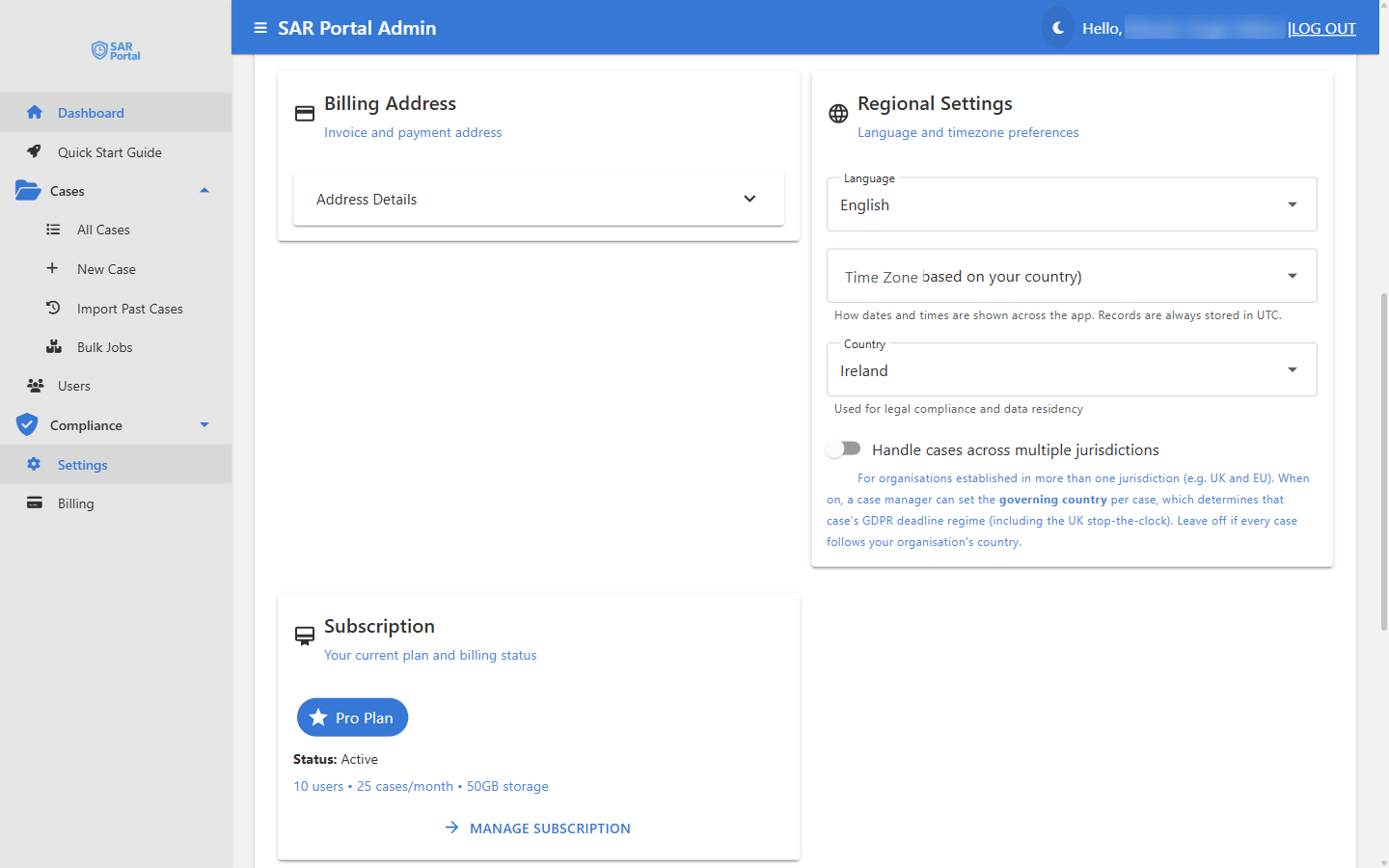
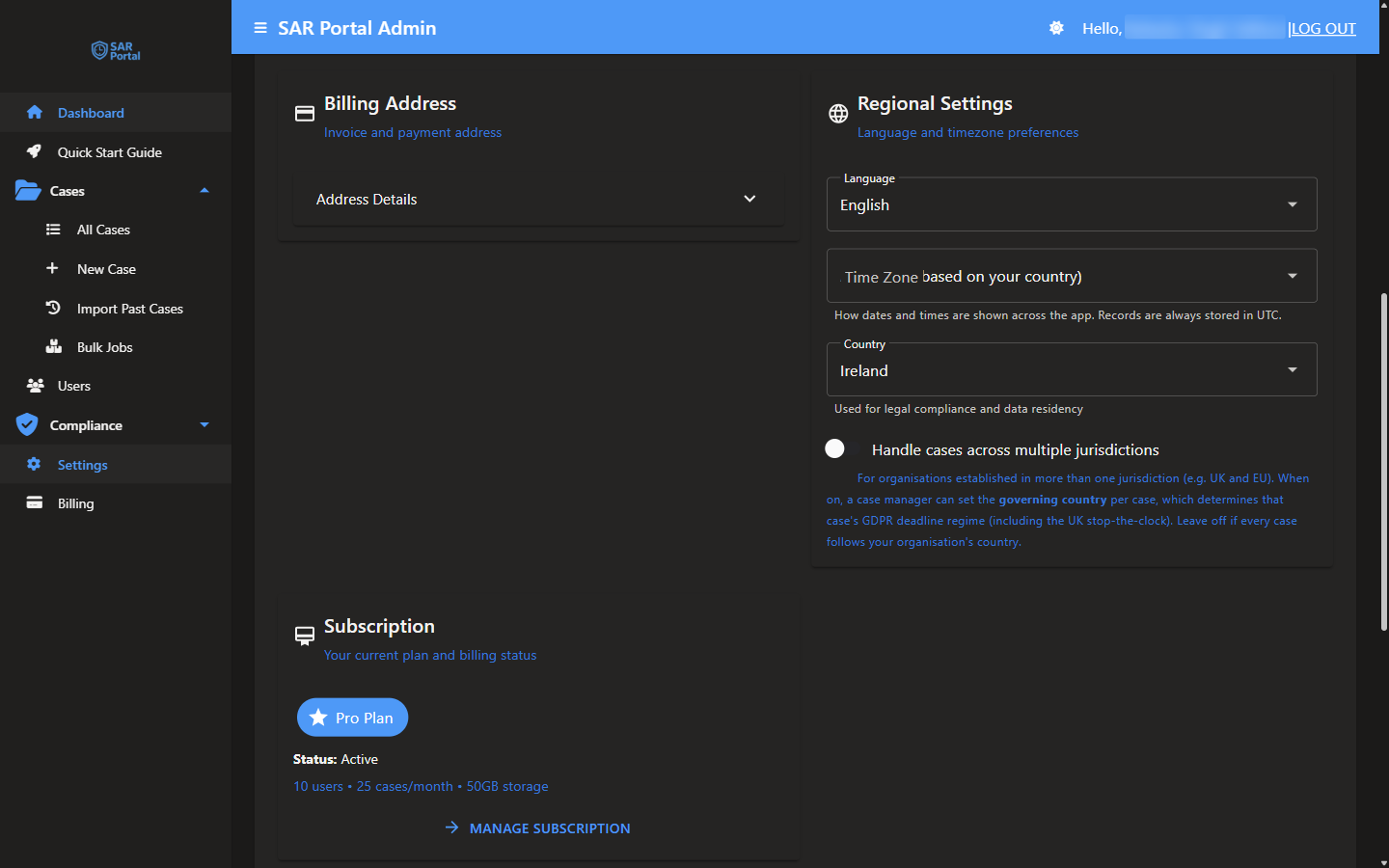
The Regional Settings card (“Language and timezone preferences”) is on the Organization tab.
| Field | What it does |
|---|---|
| Language | Your preferred language: English, French, German or Spanish. The app and its emails are in English today |
| Time Zone | “How dates and times are shown across the app. Records are always stored in UTC.” |
| Country | “Used for legal compliance and data residency”. The country of your organization, which sets the GDPR regime for your cases |
| Handle cases across multiple jurisdictions | Lets a case manager set a governing country per case. Off by default |
Change the time zone or country
- Click Settings in the sidebar
- Stay on the Organization tab
- In Regional Settings, choose a Time Zone and a Country
- Click Save Changes at the bottom of the tab
Time Zone
The time zone choices are:
- Automatic (based on your country), the default
- United Kingdom (GMT / BST)
- Ireland (GMT / IST)
- Portugal (WET / WEST)
- Central European Time (CET / CEST)
- Eastern European Time (EET / EEST)
Once set, upload times, the case timeline, deadlines and other dates on screen are shown in your local time. Records are always stored in UTC. A few places always show UTC so their timestamps are never ambiguous: the Compliance Verification page, the audit logs, exported request records and the portal URL dates under Settings > Integrations.
Statutory deadlines are shown as a date, not a time: a deadline runs to the end of the due day. See Deadlines & Extensions.
Country
The Country list contains the EU member states, the United Kingdom and Norway. The same Country appears in the Billing Address card; changing it in one place changes it in both.
Your country decides the deadline rules for your cases:
- United Kingdom: UK GDPR. The statutory “stop the clock” is available when you ask the requester for ID or clarification.
- Any other country in the list: EU GDPR. There is no statutory stop the clock.
Handle Cases Across Multiple Jurisdictions
Turn this on if your organization is established in more than one jurisdiction, for example a group with a UK company and an Irish company. The switch caption reads: “For organisations established in more than one jurisdiction (e.g. UK and EU).”
When it is on:
- New Case shows a Governing country field, set to your organization’s country by default.
- The case page shows a Governing law line in the case details, with an edit button.
When it is off, every case follows your organization’s country. Leave it off if all your cases are handled under one country’s law.
What the governing country means
The governing country is the country of the establishment that handles the request (GDPR Article 3(1)), not where the requester lives. It decides the case’s deadline regime, including whether the UK stop the clock is available.
Set the governing country on a new case
- Click New Case in the sidebar
- In Governing country, choose the country of the establishment handling the request
- Complete the rest of the form and create the case
Change the governing country on an existing case
- Open the case
- Find Governing law: {country} (UK GDPR) or (EU GDPR) in the case details
- Click the edit button (Change the governing country)
- In the Governing country dialog, choose the country. The dialog shows what it resolves to: “UK GDPR (stop-the-clock available)” or “EU GDPR (no statutory stop-the-clock)”
- Optionally add a Reason / note (optional). It is recorded in the audit trail and not sent to the data subject
- Click Save
Changing the governing country never changes the case’s existing statutory due date. Every change is recorded in the case’s audit trail.
Statutory Clock (UK Cases)
On a case governed by UK law, the case details show Statutory clock: Running or Statutory clock: Stopped:
- Stop the clock pauses the deadline while you wait for the requester’s ID or clarification.
- Restart the clock restarts it once the requester has responded. The deadline moves forward by the time the clock was stopped; it is not reset.
EU cases do not show this line. See Deadlines & Extensions for when you may stop the clock.
Internal Target
An internal target is your own earlier goal for responding, for example “respond within 15 working days”. It is separate from the legal deadline:
- It is never shown to the data subject.
- It never affects overdue or breach status. Only the statutory deadline does.
To set or clear it:
- Open the case
- Next to Internal Target in the case details, click the flag button (Set or clear the internal target)
- Choose an Internal Target Date. It must fall between the received date and the statutory deadline
- Optionally add a Reason / note (optional), which is recorded in the audit trail
- Click Save target, or Clear target to remove an existing target
Related Pages
- Organization Settings - The rest of the Organization tab
- Deadlines & Extensions - Statutory deadlines, extensions and stop the clock
- Creating Cases - The New Case form
- Audit Logs - Where changes are recorded