Case Management
The Case Management settings let you configure how SAR Portal handles data subject requests for your organization.
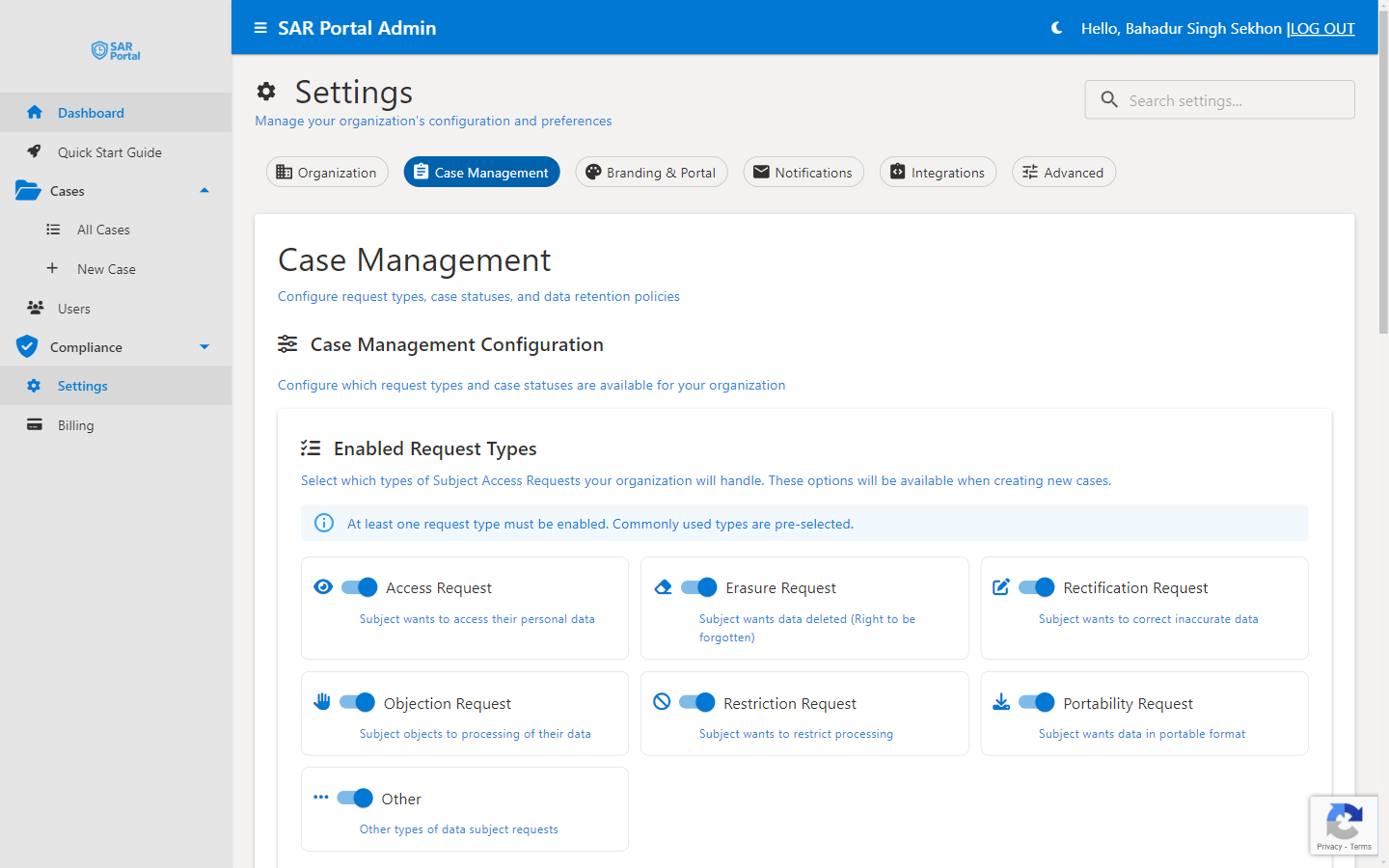
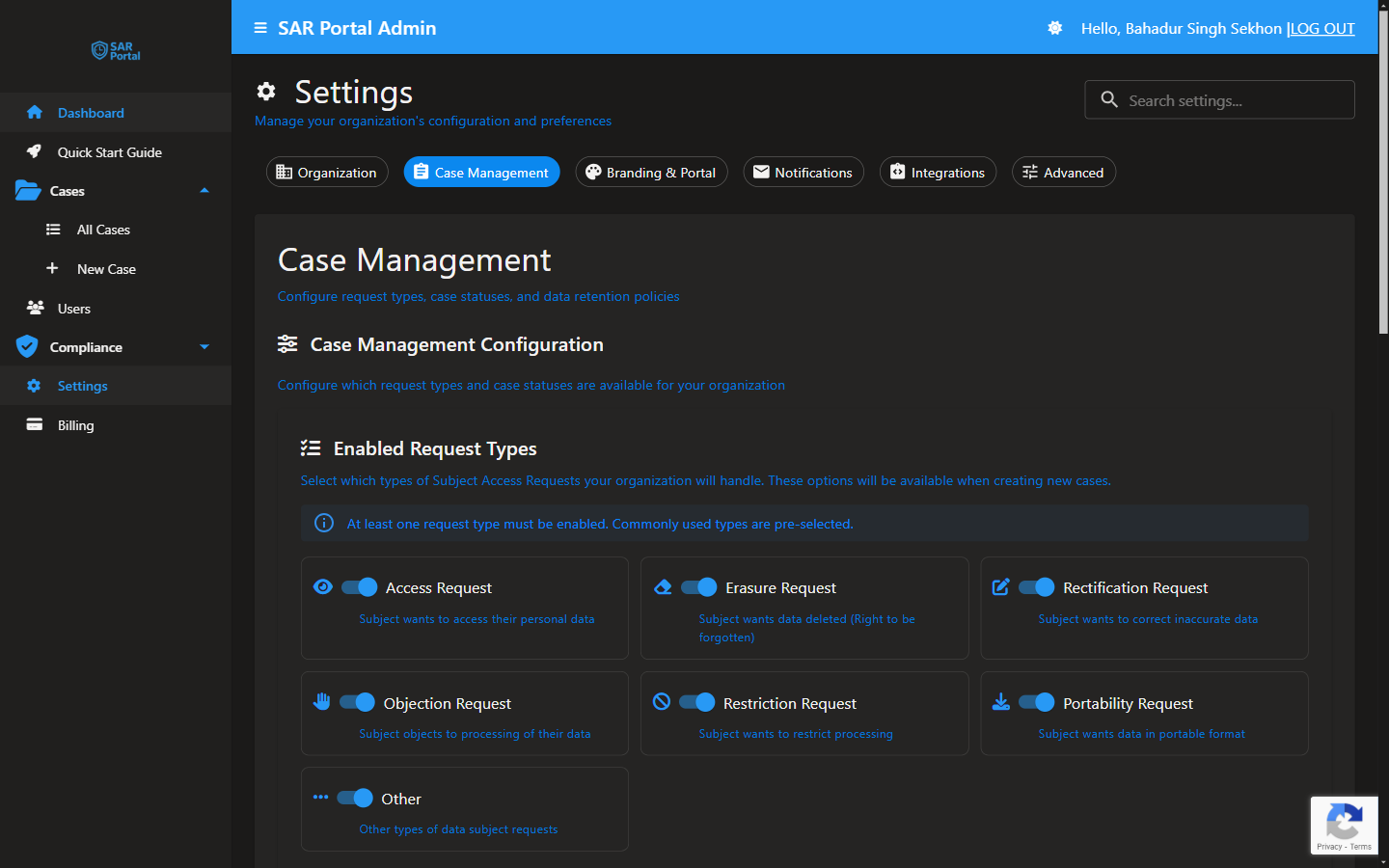
Enabled Request Types
Configure which types of Subject Access Requests your organization will handle. These options appear when creating new cases.
Available Request Types
| Request Type | Description | GDPR Article |
|---|---|---|
| Access Request | Subject wants to access their personal data | Art. 15 |
| Erasure Request | Subject wants data deleted (Right to be forgotten) | Art. 17 |
| Rectification Request | Subject wants to correct inaccurate data | Art. 16 |
| Objection Request | Subject objects to processing of their data | Art. 21 |
| Restriction Request | Subject wants to restrict processing | Art. 18 |
| Portability Request | Subject wants data in portable format | Art. 20 |
| Automated Decision Objection | Subject objects to a decision made solely by automated means | Art. 22 |
| Other | Other types of data subject requests | Various |
Enabling/Disabling Request Types
- Go to Settings > Case Management
- Toggle request types on or off
- Click Save Configuration. Nothing changes until you save. Click Reset to go back to the last saved values
Saved changes apply to the request types offered when cases are created.
Enabled Case Statuses
SAR Portal uses a fixed set of case statuses to track request progress. Like request types, each status can be individually enabled or disabled for your organization, controlling which statuses are available when working a case.
The switches on this tab use short labels. Cases show a longer name for some statuses, given in the last column.
| Switch label | Description | Name shown on cases |
|---|---|---|
| Open | Request received and awaiting review | Opened |
| Processing | Request is being processed | In Progress |
| Extended | Processing time has been extended | Deadline Extended |
| Verified | Subject identity verified | Identity Verified |
| Awaiting Info | Waiting for additional information | Awaiting Information |
| Info Submitted | Subject submitted requested information | Information Received |
| Completed (Fulfilled) | Request successfully fulfilled | Completed & Fulfilled |
| Closed (Rejected) | Request rejected | Rejected |
| Closed (Withdrawn) | Request withdrawn by subject | Withdrawn by Subject |
| Closed (No Data) | No data found for subject | No Data Found |
| Closed (Duplicate) | Duplicate request | Duplicate Request |
| Closed (Invalid) | Invalid request | Invalid Request |
Data Retention
Global Case Retention Period
30 days after a case closes, its documents and the requester’s contact details are removed automatically, unless the case is on legal hold. You choose how long the case record itself is kept before it is deleted.
The Retention Period (Months) field under Global Case Retention Period sets how long a case record is kept, counted from the date the case was created, before it is deleted (1 to 120 months, default 12). You can extend it for a single case while the case is open. This setting does not keep documents: they are removed 30 days after closure whatever you set here, so download anything you must keep before then.
Change the number, then click Save Configuration.
When choosing the period, consider:
- Documenting your retention rationale
- Balancing compliance needs with data minimization
Document Collation
The Document Collation card controls whether staff must record where they collected documents from (for example OneDrive, SharePoint or Google Drive) before working a case.
| Setting | What it does |
|---|---|
| Require document collation before case work can proceed | When on, users must add at least one collation source before case work can proceed. The app recommends it for B2B organisations |
Turn the switch on or off, then click Save Configuration.
Best Practices
Start Simple
- Begin with the most common request types (Access, Erasure)
- Add more as needed
- Don’t enable types you won’t handle
Set a Sensible Retention Period
- Align the Global Case Retention Period with your documented policy
- Avoid retaining personal data longer than necessary
Review Regularly
- Check settings when regulations change
- Update based on your experience
- Ensure settings match your privacy policy
Related Settings
| Section | What It Does |
|---|---|
| Organization | Company details used in responses |
| Notifications | DPO copies and the emails subjects receive |
| Advanced | AI redaction settings |