Email Templates
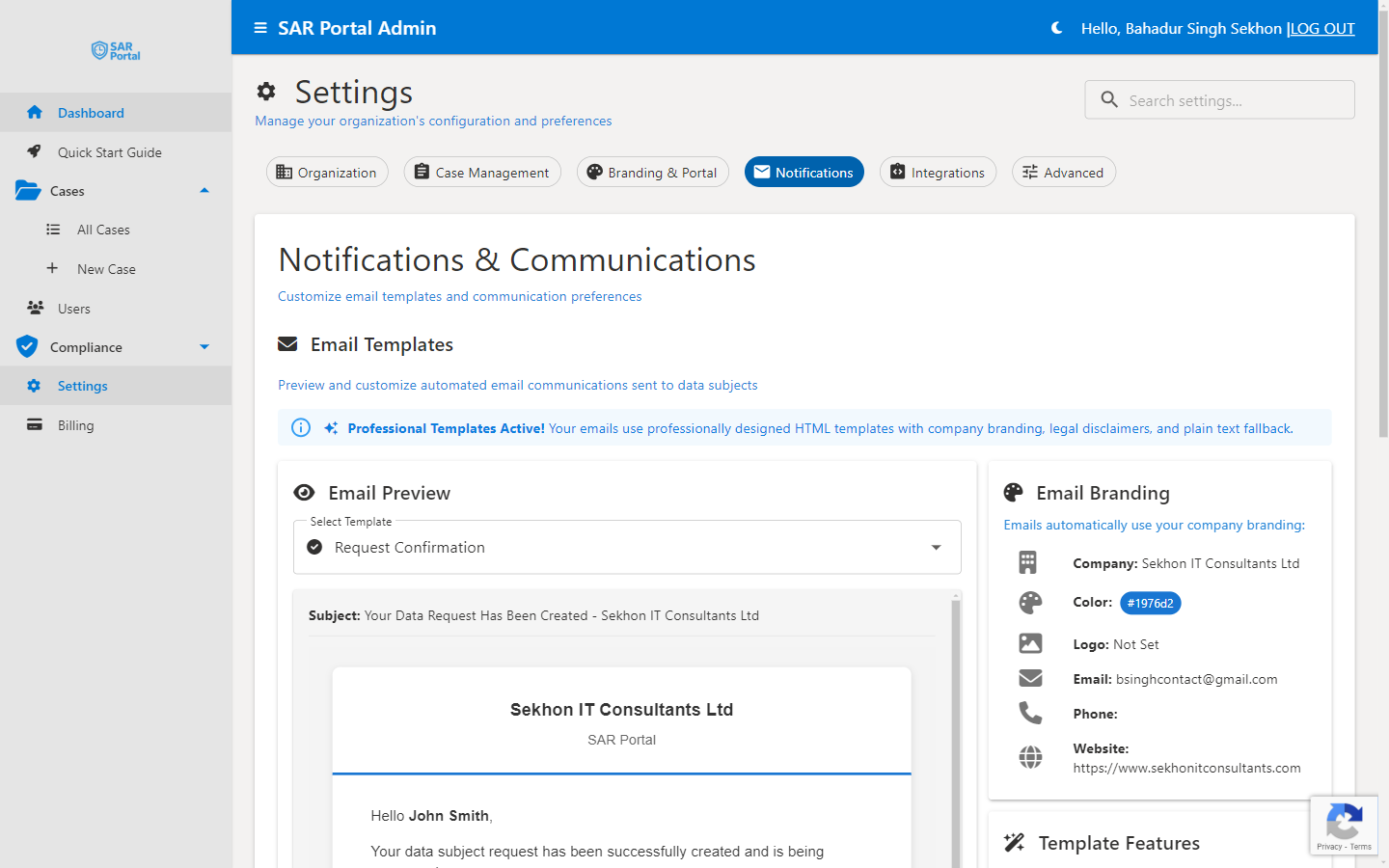
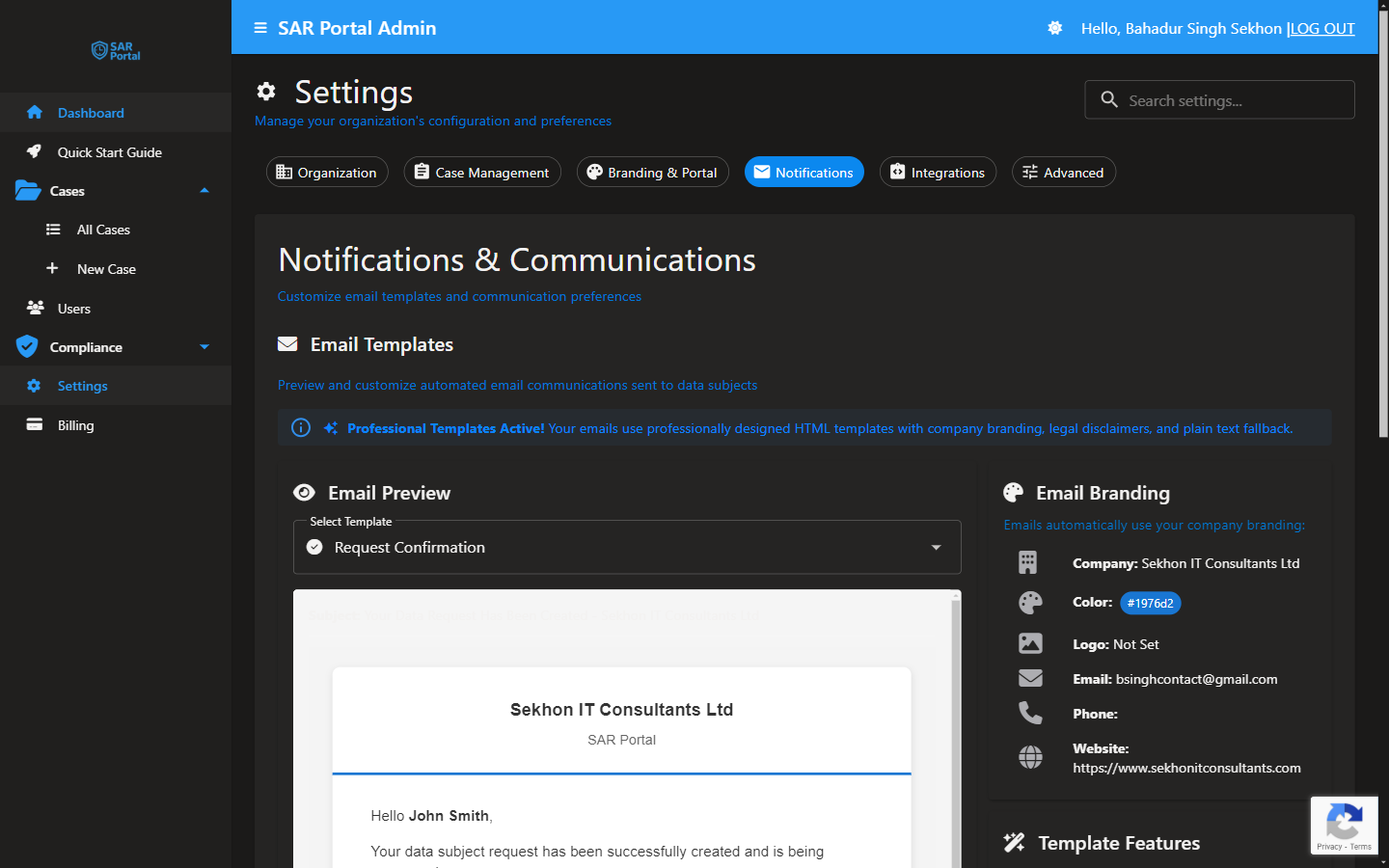
The Notifications tab in Settings (“Notifications & Communications”) lets you copy your Data Protection Officer on case emails, preview every automated email template, send yourself a test, and, on the Enterprise plan, write your own email wording.
What This Section Does
- DPO Email Copies: CC your DPO on emails sent to data subjects.
- Email Templates: preview each automated email and send a test.
- Email Branding: a summary of the company details and branding your emails use.
It does NOT let you enable or disable specific notifications. All automated emails are sent based on system events (new case created, status changed, and so on) and cannot be individually switched off.
Like all Settings, this tab is for Admins only.
DPO Email Copies
Turn on CC DPO on all case emails to copy your Data Protection Officer on every case-related email sent to data subjects. The DPO copy is identical to what the data subject receives.
- Go to Settings > Notifications
- Switch on CC DPO on all case emails
- Enter the DPO Email Address, or leave it blank to use your main contact email
- Click Save Notification Settings
It applies to: Request Confirmations, Status Updates, Deadline Extensions, Case Closures and Anonymization Notices.
Email Branding
The Email Branding panel is a read-only summary: “Emails automatically use your company branding”. It shows the values your emails will use:
| Item | Where to change it |
|---|---|
| Company | Organization > Company Name |
| Color | Branding & Portal > Primary Color |
| Logo | Branding & Portal > Company Logo |
| Organization > Contact Email | |
| Phone | Organization > Contact Phone |
| Website | Organization > Company Domain |
| Signatory | Organization > Email Signatory (Signatory Name and Title). If not set, emails use your team name |
| Sign-off | Organization > Email Signatory > Sign-off Wording. Default “Best regards,” |
See Organization Settings and Branding & Portal.
Automated Emails
Templates you can preview
The Select Template list in Email Preview has these templates:
Data Subject Emails
| Template | When Sent | Enterprise custom wording |
|---|---|---|
| Request Confirmation | When a request is received | Yes |
| Status Update | When the case status changes | Yes |
| Deadline Extension | When the deadline is extended | Yes |
| Information Request | When you ask the subject for more information | Yes |
| Case Closure | When the case is closed | Yes |
| Anonymization Notice | When the subject’s details are anonymized | Yes |
| Verification Code | When the subject signs in to the public portal with a one-time code | No (system template) |
Admin Notifications
| Template | When Sent | Enterprise custom wording |
|---|---|---|
| New Case Alert | To admins and case managers when a new case is submitted via the public portal | No (system template) |
| Info Submitted Alert | To admins and case managers when a data subject provides additional information | No (system template) |
Other emails to your team
These are sent automatically but are not in the template list:
| When Sent | |
|---|---|
| Page allowance warning | To your contact email when 80% of your page allowance is used, and again at 100%. Not sent on the Enterprise plan |
| AI usage warning | To your contact email when 80% of your AI allowance is used, and when it is used up. Not sent on the Enterprise plan |
| Allowance reached (Enterprise) | To your contact email when 100% of your Enterprise allowance is used, once per billing period |
| Bulk job finished | To the user who started the job, when a bulk job completes, completes with errors, fails or is cancelled |
These emails give counts and percentages only. See Usage & Limits.
Account & Billing
| When Sent | |
|---|---|
| User Invitation | When inviting a new team member |
| Welcome Email | After registration |
| Payment Succeeded | After successful payment |
| Payment Failed | When payment fails |
| Subscription Canceled | When the subscription is cancelled |
Email Features
All automated emails include:
Professional Design
- Clean, mobile-responsive HTML layout
- Your company branding
- Clear call-to-action buttons
Plain Text Fallback
- Automatic plain text version for email clients that don’t support HTML
Compliance Information
- Legal disclaimers
- A system footer that identifies SAR Portal as the data processor (see Branding & Portal)
Sender Address
Automated emails are sent from a SAR Portal address on the sarportal.com domain, with the sender name “{Company Name} Data Requests”. Send yourself a test email to see the exact From address, and add it to your safe-senders list. Enterprise customers can send from their own authenticated address; contact support to set this up.
Custom Email Templates (Enterprise)
To customize a template:
- In Select Template, choose one of the six customizable templates
- In Custom Email Body, switch on Use custom body
- Optionally enter a Custom Subject Line (optional). Leave it blank to keep the default subject
- Write the Email Body Content (up to 5,000 characters). Click a chip under Available Placeholders to insert one, such as
{{FirstName}},{{CaseId}}or{{DueDate}} - Optionally click AI Validate for an AI review of grammar and tone with a score out of 10
- Click Save Custom Template
The Formatting Guide shows the simple formatting you can use: **bold**, __underline__, - for bullet points and blank lines for new paragraphs. Your logo, branding and GDPR footer are added automatically, and a “View Case Online” button is always added below your content.
Placeholders that the template does not recognise are flagged under Unrecognized placeholders, because they would appear as-is in the email. The AI review is optional: you can save without it. Reset to Default goes back to the standard template.
Testing Email Templates
Send Test Email
- Go to Settings > Notifications
- In Select Template, choose the template to test
- Click Send Test Email
- Enter the Email Address that should receive the test
- Click Send Test
- Check that inbox and verify the branding appears correctly
Email Deliverability
Ensuring Emails Arrive
To ensure automated emails reach recipients:
- Allow the sender - Add the From address of your test email to safe senders
- Check spam folders - Initial emails may land in spam
- Verify DNS - For a custom sender address, ensure proper SPF/DKIM records
If Emails Aren’t Arriving
- Check spam/junk folders
- Verify the email address is correct
- Check if the email provider is blocking
- Contact support@sarportal.com for delivery issues
Related Settings
| Section | What It Does |
|---|---|
| Branding & Portal | Logo, colors and email footer (also applies to emails) |
| Organization | Company details and email signatory used in emails |