Plans & Pricing
SAR Portal offers flexible plans to match your organization’s needs.
Only Admins can open the Billing page.
Available Plans
Basic Plan
For small businesses just starting with GDPR compliance.
| Feature | Limit |
|---|---|
| Cases per month | 1 |
| Users | 1 |
| Storage | 2 GB |
| Page allowance | 125 pages a month (scanned and text pages) |
Best for:
- Small businesses
- Low DSAR volume
- Basic compliance needs
Starter Plan
AI-powered processing for growing businesses.
| Feature | Limit |
|---|---|
| Cases per month | 5 |
| Users | 3 |
| Storage | 10 GB |
| Page allowance | 1,250 pages a month (scanned and text pages) |
Best for:
- Growing companies
- Regular DSAR handling
- AI redaction needs
Pro Plan
Full features for high-volume organizations.
| Feature | Limit |
|---|---|
| Cases per month | 25 |
| Users | 10 |
| Storage | 50 GB |
| Page allowance | 5,000 pages a month (scanned and text pages) |
Best for:
- Larger organizations
- Regular DSAR volume (up to 25 cases a month)
- Custom branding and historical case import
Every plan includes all AI features. Document processing (text extraction, personal data detection and redaction) uses your page allowance:
- Scanned pages: each PDF page, and each image as one page
- Text pages: emails, Office and text files, counted at 2,500 characters of text a page
Both come out of one pool. On yearly billing you get twelve months’ pages pooled for the year (for example Pro: 60,000 pages a year), and the pool resets on your annual billing date. See Usage & Limits for what happens when the pages are used up.
Enterprise
For large organizations and high volumes.
Enterprise includes:
- 60,000 pages a year by default (scanned and text pages), shared across all requests, under a fair-use agreement. You are alerted at 100%; document processing pauses at 150% until the allowance is reviewed with your account manager
- No monthly case cap
- 50 users and 500 GB storage by default (more by contract)
- Custom email templates and sender address
- Bulk archive processing (up to 5 GB or 50,000 files per job)
- A named contact (one of our directors)
- Support reply within four business hours
- 99.5% monthly uptime commitment
Enterprise starts from €3,000 a year ex VAT, billed annually. Contact us for a quote.
Pricing
Billing Options
| Plan | Monthly (ex VAT) | Annual (ex VAT) |
|---|---|---|
| Basic | €29/mo | €199/yr |
| Starter | €59/mo | €590/yr |
| Pro | €199/mo | €1,990/yr |
| Enterprise | Not available | From €3,000/yr |
Annual billing provides significant savings.
Free Trial
14-Day Trial
Every free trial runs for 14 days on the plan you chose, with that plan’s features (for example, custom branding and Import Past Cases are on Pro). No credit card required.
- Page allowance: 500 pages (scanned pages, and text at 2,500 characters a page) for the whole trial, whatever plan you chose. When they are used up, document processing pauses until you choose a plan
- Trials are limited to 10 cases, 10 MB per file, 10 files per case, 1 GB storage and 250 MB per batch upload
- Cancel anytime during trial
- Automatic end if not upgraded
Enterprise has no self-serve trial: contact us.
During Trial
You can:
- Test the features of the plan you chose
- Create real cases
- Invite team members
- Evaluate fit for your needs
After Trial
The trial runs for 14 days and requires no credit card, so nothing is charged automatically when it ends. If you don’t choose a plan, the account becomes restricted until you pick one:
- Read-only access to existing data, with data export
- Cannot create new cases
- No automatic charge (there’s no card on file)
- Choose a plan anytime to continue
- After 90 days, your data is permanently deleted (we email you 10 days before)
Changing Plans
Upgrading
- Go to Billing
- Click View Plans (in the Want more features? card). During a trial, click View All Plans or Activate Subscription instead
- On the plan you want, click Upgrade to plan
- In Choose Billing Cycle, pick Monthly or Annual, then click Continue to Payment
- Confirm in the payment form
- New features are available immediately
Billing is prorated - you only pay the difference for the remaining period.
Downgrading
- Go to Billing
- Click View Plans
- On the plan you want, click Downgrade to plan
- If a Review Downgrade or Cannot Downgrade dialog opens, read what it says (see below)
- In Choose Billing Cycle, pick Monthly or Annual, then click Continue to Payment
- Confirm in the payment form
Both upgrades and downgrades take effect immediately - the new plan’s limits apply at once.
Plan changes are not available while a payment is overdue. Settle it with Update Payment Method first.
When Payment Fails (Past-Due)
If a payment fails, your subscription enters a past-due state and access is reduced in stages so you have time to fix the payment method. Updating your card restores full access immediately.
| Days past-due | What’s blocked | What still works |
|---|---|---|
| Day 0–6 | AI features, inviting new users, new requests through the public portal | Staff creating cases, file uploads, editing, viewing, export |
| Day 7–13 | Also: creating cases, uploading files | Editing existing cases, viewing, export |
| Day 14+ | Also: all editing (read-only) | Viewing and data export only |
Always available, even while past-due:
- Update your payment method - the way to recover full access
- Export your data (GDPR Article 20) - per-case and full-tenant export are never blocked
Plan changes are unavailable until your payment is up to date.
Recovering Access
- Go to Billing
- Click Update Payment Method
- Enter your new card details and confirm with Update Payment Method
- Once payment succeeds, full access is restored immediately
Canceling Your Subscription
Canceling is separate from deleting your account - your organization and data remain, but billing stops.
- Go to Billing
- Click Cancel Subscription
- Confirm:
- Paid plan: click Cancel at Period End. You keep full access until the end of the billing period, and you can reactivate before then (the plan cards show Reactivate with plan). No refund is given for the current period
- Trial: click Cancel Trial Now. The trial ends immediately and nothing is charged
After Cancellation
Once the cancellation takes effect:
- For 90 days: read-only access plus full data export (so you can retrieve everything you need)
- After 90 days: your organization’s documents and user accounts are permanently deleted, and so are its cases, except the record of a case on legal hold. We email you 10 days before.
To keep working normally, choose a plan again before the 90-day window ends. If you want to permanently remove all data instead, see Account Deletion.
Plan Features Comparison
| Feature | Basic | Starter | Pro |
|---|---|---|---|
| Case Management | Yes | Yes | Yes |
| Public Portal | Yes | Yes | Yes |
| Email Notifications | Yes | Yes | Yes |
| Audit Logs | Yes | Yes | Yes |
| AI PII detection and redaction (within your plan’s page allowance) | Yes | Yes | Yes |
| Batch processing (upload limit per batch) | Yes (250 MB) | Yes (500 MB) | Yes (1 GB) |
| Role-Based Access Control | Yes | Yes | Yes |
| Custom Branding | No | No | Yes |
| Historical Case Import | No | No | Yes |
| Email support | Reply within one business day | Reply within one business day | Reply within one business day |
Accessing Billing
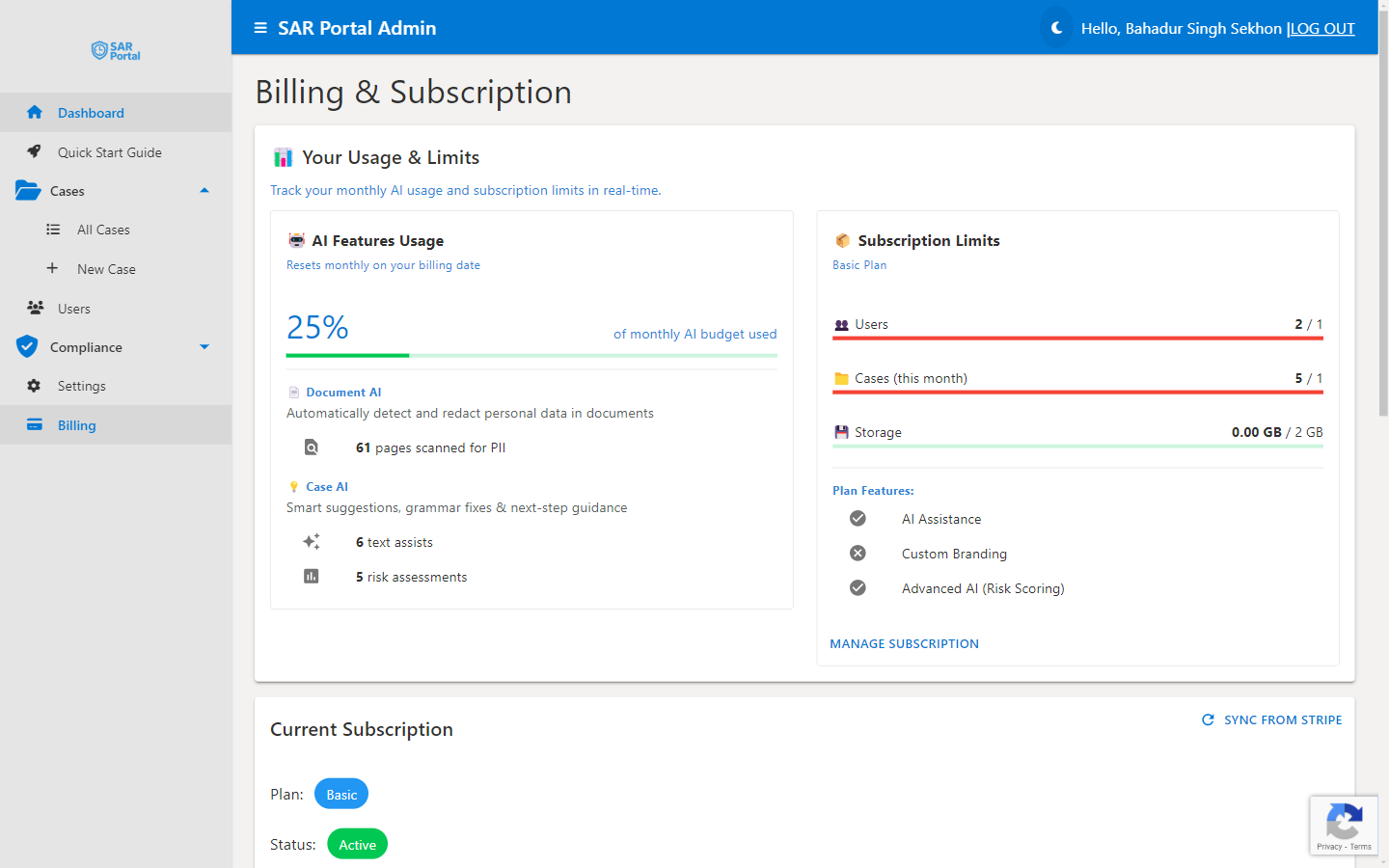
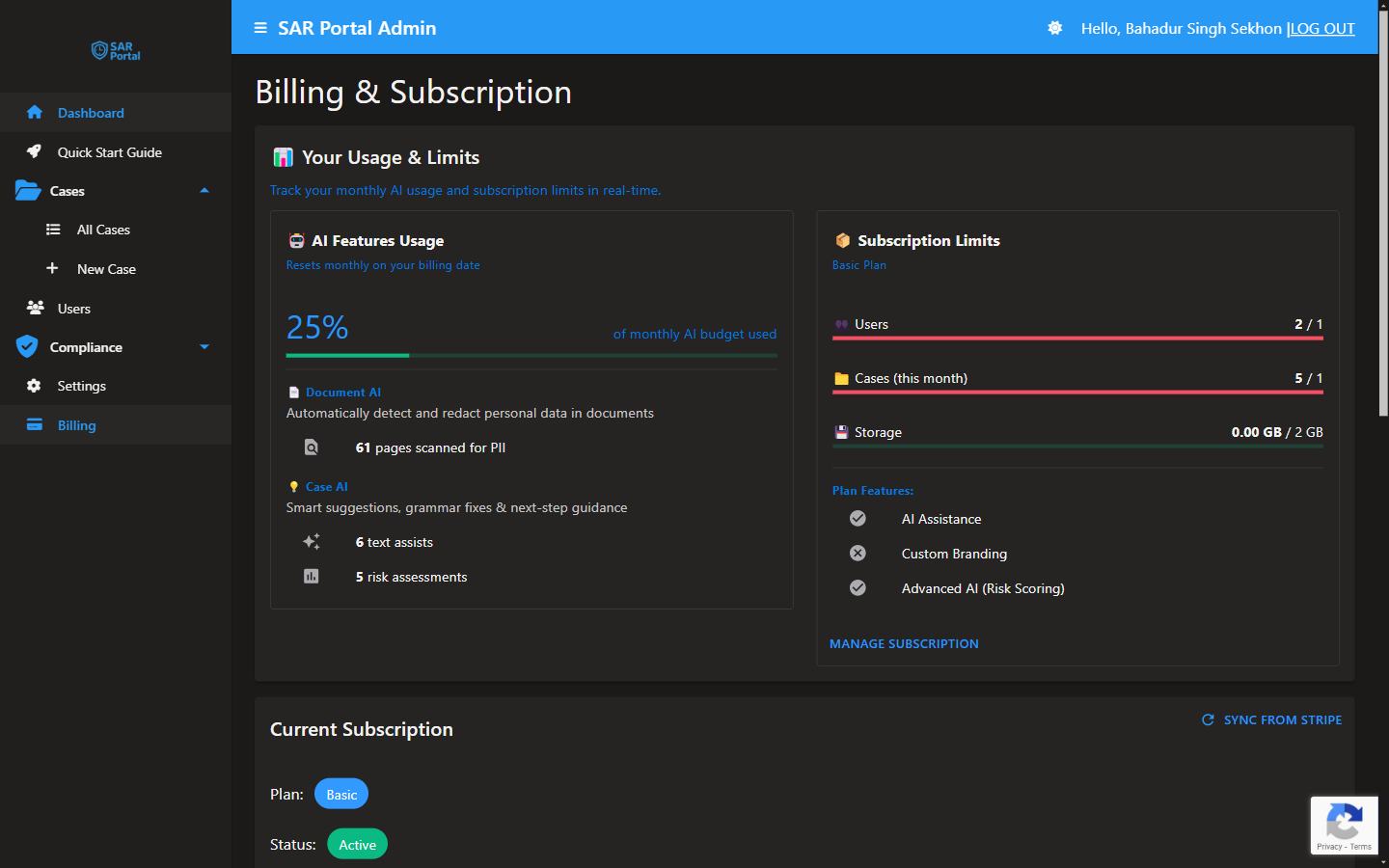
- Click Billing in the sidebar
- Your Usage & Limits shows your AI allowance, page allowance and plan limits
- Current Subscription shows your plan, status, billing cycle and next billing date, with Update Payment Method and Cancel Subscription
- View Plans opens the plans to change plan
- Invoice History lists your invoices
Payment Methods
Accepted Methods
- Credit cards (Visa, Mastercard, Amex)
- Debit cards
- Enterprise: bank transfer on invoice
Monthly and annual subscriptions are charged automatically to your card by Stripe.
Updating Payment
- Go to Billing
- Click Update Payment Method
- Enter the new card details
- Click Update Payment Method
The new card becomes your default payment method automatically.
Invoices
Accessing Invoices
- Go to Billing
- Scroll to Invoice History (Invoice Number, Date, Amount, Status)
- Click the PDF icon to download an invoice, or the open icon to view it online
Invoice Contents
- Plan charges
- Usage period
- VAT (if applicable)
- Payment status
VAT
For EU businesses:
- VAT charged based on your country
- Provide VAT number for reverse charge
- Invoices include proper VAT documentation