Downloading Your Files
This page is for people who made a data request to an organization that uses SAR Portal. It explains how to sign in to the organization’s request portal and download the files they have sent you. Organizations can share this page with requesters.
Who Can Use It
- You, the requester - anyone who can receive email at the address the request was made under
- No account or password - you sign in with a one-time code sent to that email address each time
- No cost to you - downloading is free
You need the portal link the organization gave you. It looks like https://app.sarportal.com/subjectaccess?token=.... Use the same link you used to make the request, or the one in the organization’s emails or on its website. If the link shows “Invalid, expired, or decommissioned token”, ask the organization for a new one.
Step 1: Sign In
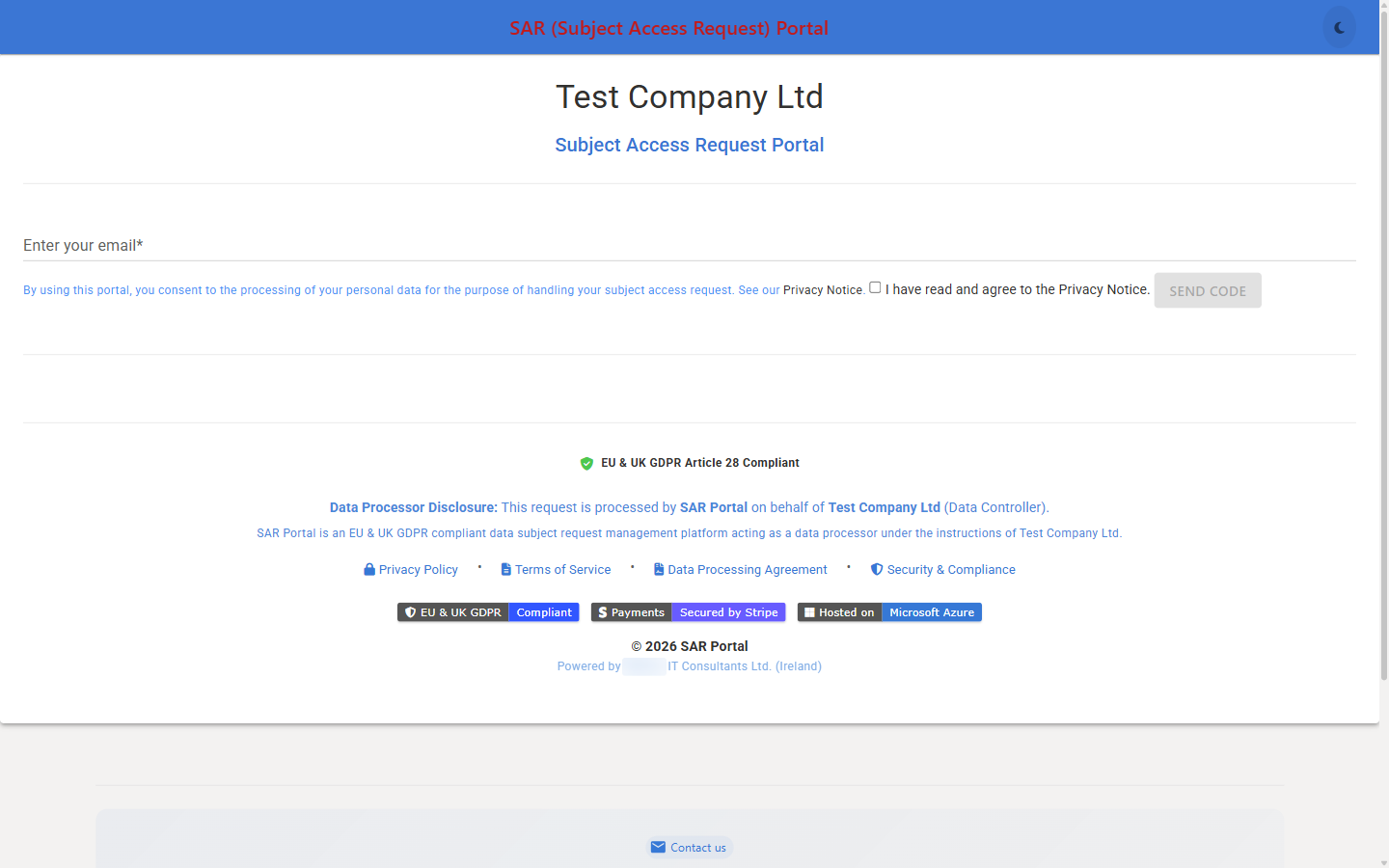
- Open the portal link
- Type your email address under Enter your email. Use the address your request was made under
- Tick I have read and agree to the Privacy Notice.
- Click Send Code
- Copy the code from the email into Enter code from email and click Verify
The code expires after 10 minutes. In one visit you can ask for up to 5 codes, and make up to 5 attempts, in 15 minutes; after that, wait 15 minutes and try again.
Sending the code needs a Google security check (reCAPTCHA) to load in your browser. If you see “Security verification couldn’t load”, an ad blocker or privacy extension is blocking it: turn it off for this site, or open the link in a private/Incognito window.
Step 2: Open Your Case
After you verify, the Your Cases tab lists your requests with their Case ID, Type, Status and Due Date. Click View Details on the case you want. The Case Details tab opens.
Step 3: Download Your Files
From the Documents Panel (recommended)
- On Case Details, expand Documents
- The panel shows how many documents the case has, for example “12 documents”
- To find a file, type part of its name in Filter by file name
- Click Download next to a file to save it, or click Download all (N) to save every file at once
Each file shows its size, upload date and a label: Reference Document from Case Handler or Submitted by You. Files the organization attached when it asked you for information may show Submitted by You once you have answered that request.
Long lists are split into pages of 50 files; use the page numbers under the list.
Download All
Download all (N) appears when the case has more than one file. While the download runs, the button shows Preparing….
- Your files are packed into a ZIP file named
my-case-files.zip - Large sets are split into several ZIP parts of up to about 500 MB each (
my-case-files_part1of3.zipand so on). Your browser saves each part one after another; keep the page open while the button shows Preparing… - If your browser asks whether to allow multiple downloads, allow them
From the Timeline
Expand Timeline to see each step of your request. A step shows up to 10 attached files with a Download button each. If there are more, it says “+N more — see the Documents tab to view and download all.”
Download a Copy of Your Case Data
Under Download Your Data, click Download JSON or Download PDF to save a copy of your case information, status history, information exchanges and communications. You can do this at any time.
When the Organization Asks You for Information
If the case shows Action Required: Information Requested:
- Read the organization’s message
- Type your answer under Submit Your Response
- Optionally attach files under Attach Supporting Documents (Optional). You can select several files at once. Allowed types and the size limit (100MB per file) are shown under the file picker. Use descriptive file names, such as “utility_bill.pdf”
- Click Submit Information
The organization is notified, and your files then appear in Documents as Submitted by You.
File Integrity
SAR Portal records a SHA-256 fingerprint of each file when it is added to the case. Do not alter downloaded files if you may need them as evidence, because any change can be detected.
Every download is recorded in the organization’s audit trail, with the file’s fingerprint.
How Long Files Stay Available
Files appear as soon as the organization attaches them; you do not have to wait for the case to be closed. After the case is closed, SAR Portal anonymises it after a set period (30 days after closure unless the organization changed it). Anonymisation deletes the documents and removes your email address from the case, so it no longer appears in the portal. For most requests the closure email gives the date. Download everything you need before then.
Troubleshooting
| Problem | What to do |
|---|---|
| No code arrives | Check your spam folder, then click Send Code again |
| “Security verification couldn’t load…” | Turn off your ad blocker or privacy extension for this site, or use a private/Incognito window |
| “Too many OTP requests. Please wait 15 minutes.” | Wait 15 minutes, then ask for a new code |
| “No cases found for your email.” | Sign in with the exact address your request was made under |
| “No documents attached to this case.” | The organization has not sent any files yet |
| The Download all button is missing | The case has only one file; use Download next to it |
| “Information submitted. N file(s) could not be uploaded due to quota limits.” | Your answer was sent, but some files were not. Contact the organization to arrange another way to send them |
| “Access temporarily unavailable…” | Contact the organization directly |
Related
- Portal Overview - How the portal works for organizations
- Embedding on Your Site - Portal links and the iFrame