Portal Overview
The Public Portal is where data subjects submit GDPR requests directly to your organization. It is also where they follow their request, answer your questions and download the files you send them.
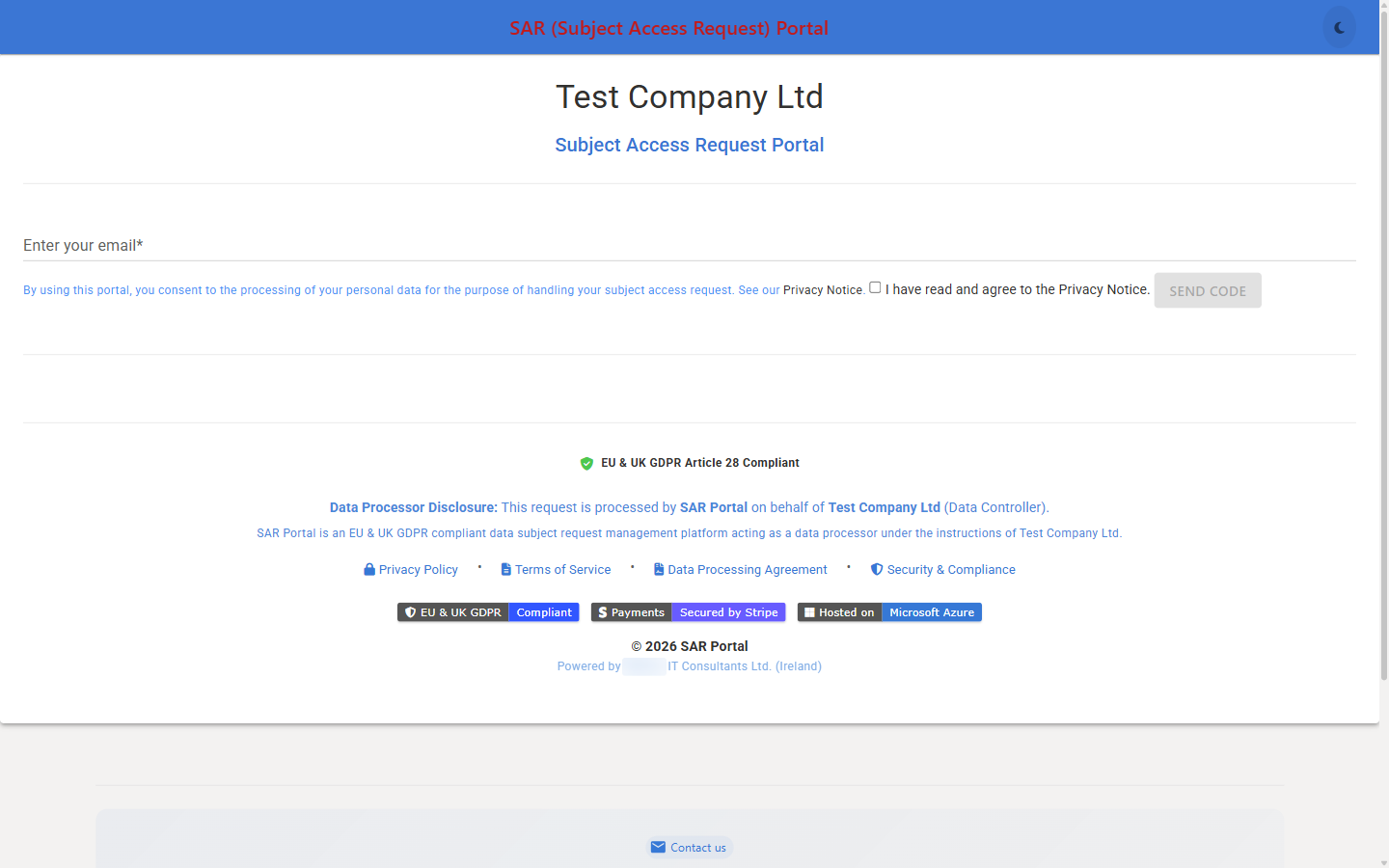
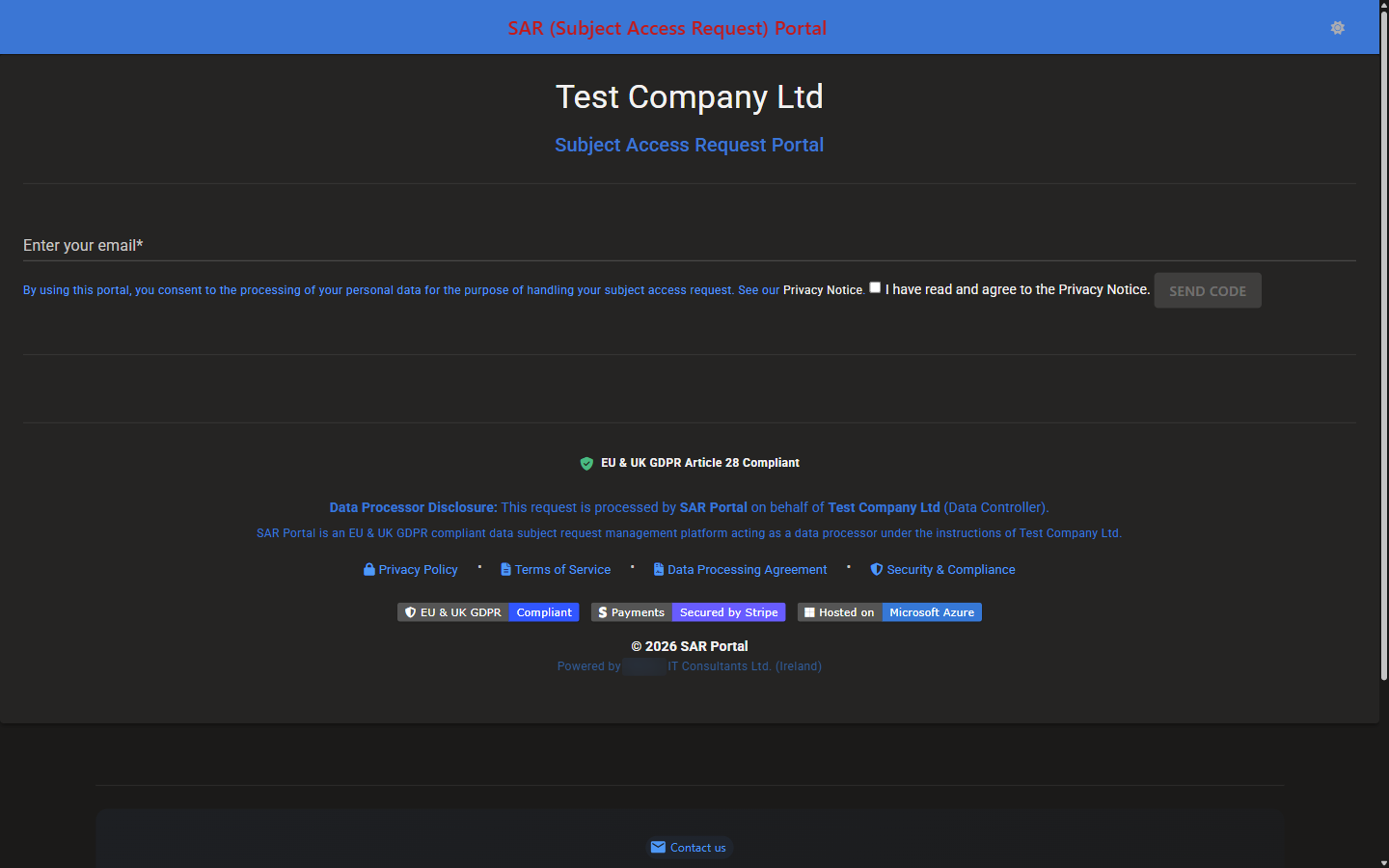
What is the Public Portal?
The Public Portal is a web page where anyone can submit a data subject request to your organization. You create the portal link in Settings > Integrations, and you can have more than one link (for example one for your website and one for a campaign).
Key Features
- Your name on the page - Your company name (and, on Pro and Enterprise, your logo) in the header
- Email verification - The requester confirms their email address with a one-time code
- Automatic case creation - A submitted request becomes a case straight away
- Two-way exchange - The requester answers your information requests and uploads documents in the portal
- Secure downloads - The requester downloads the files you attach to the case, one by one or all at once
- Mobile friendly - Works on phones, tablets and desktops
How It Works
For Data Subjects
- Visit your portal - Open your portal link
- Enter email - Type their email address under Enter your email, tick I have read and agree to the Privacy Notice. and click Send Code
- Verify - Enter the code from the email under Enter code from email and click Verify
- Submit request - On the Create New Request tab, enter Your Full Name, choose a Request Type, optionally add Additional Details (Optional) (up to 500 characters) and click Submit Request
- Confirmation - The portal opens the Your Cases tab, which lists the new case with its 8-character Case ID, type, status and due date. SAR Portal also emails the requester a confirmation
- Answer questions - If you request information, the requester signs in again, opens the case and replies under Submit Your Response, optionally attaching documents
- Track status and download files - The requester returns with the same link, signs in with a new code and opens View Details on the case
A requester who already has cases lands on the Your Cases tab after verifying. New requesters land on Create New Request.
For Your Organization
- Notification - Users with the Admin or Case Manager role receive an email when a new request arrives
- Case created - The request becomes a case with the status Open
- Email confirmed - The requester proved they control the email address (see Identity verification on portal cases)
- Process normally - Handle it like any other case
Portal URL
Your portal link is token-based:
https://app.sarportal.com/subjectaccess?token={your-portal-token}
Create and copy the link in Settings > Integrations > Public Portal Access. The same link is used to submit a request and, later, to track it and download files. See Embedding on Your Site for managing links, expiry dates and the iFrame embed.
Submitting through the portal is optional. You can also log requests that arrive by email or post directly as cases. The portal automates intake and email verification.
Portal Elements
Header
- Your logo, if you uploaded one (Pro and Enterprise)
- Your company name (shown when there is no logo, or when Show company name below logo on public portal is on)
- The “Subject Access Request Portal” subtitle in your primary colour
In embedded mode (iFrame) the header shows only “Subject Access Request”.
Sign-in Form
- Enter your email field
- Consent text with a link to the Privacy Notice, and the I have read and agree to the Privacy Notice. checkbox
- Send Code button, then Enter code from email and Verify
After Verification
Three tabs:
- Create New Request - submit a new request
- Your Cases - the requester’s cases (up to 50), newest first, with Case ID, Type, Status, Due Date and View Details
- Case Details - status, type, due date and Case ID, Download Your Data, any open information request, the Timeline and the Documents panel
Footer
The standalone portal shows a two-part footer:
- Your part - If you set an Email Footer in Settings > Branding & Portal, that text is shown. Otherwise the portal shows “© {year} {your company name}. All rights reserved.” and your Contact Email from Settings > Organization
- SAR Portal part - The GDPR Article 28 notice, the data processor disclosure and links to the Privacy Policy, Terms of Service, Data Processing Agreement and Security & Compliance pages
In embedded mode the footer is one line: “GDPR Compliant: Processed by SAR Portal on behalf of {your company name}” with a Privacy link.
Compliance Features
GDPR Article 28 Notice
The portal states that:
- SAR Portal is the data processor
- Your organization is the data controller
- Processing is under your instructions
Privacy Notice Link
The consent text links to SAR Portal’s privacy notice. This link cannot be changed. To point requesters at your own privacy policy, put its address in your Email Footer; the standalone portal footer shows it, and web addresses become clickable links.
Consent Checkbox
The requester must tick I have read and agree to the Privacy Notice. before Send Code becomes available.
Email Verification
Why Verification?
- Confirms the requester controls the email address
- Prevents others from viewing someone else’s cases
- Creates an audit trail
Verification Flow
- The requester enters their email address and clicks Send Code
- SAR Portal emails a one-time code
- The requester enters the code and clicks Verify
- The portal shows “Verified. Showing your cases.”
Code Details
- The code expires after 10 minutes
- Within one visit, up to 5 code requests and 5 code attempts in 15 minutes; after that the portal shows “Too many OTP requests. Please wait 15 minutes.” (or “Too many OTP attempts…”)
- There is no saved login. The requester signs in with a new code on every visit
Identity Verification on Portal Cases
When a requester verifies with a code, SAR Portal records “Email One-Time Password” as the verification method on their existing cases that have no method yet. A case submitted during the same visit gets this method the next time the requester signs in with a code. Until then, use Mark Verified on the case if the email check is enough for you. See Identity Verification.
Request Types Available
The Request Type list shows the types you enabled in Settings > Case Management > Enabled Request Types. If none are set, all eight are offered:
| Request Type | GDPR article |
|---|---|
| Access Request | Article 15 |
| Erasure Request | Article 17 |
| Rectification Request | Article 16 |
| Objection Request | Article 21 |
| Restriction Request | Article 18 |
| Portability Request | Article 20 |
| Automated Decision Objection | Article 22 |
| Other | - |
Tracking Status & Downloading Files
The portal is not only for submitting. The requester follows the request through to completion there.
On the Case Details Tab
- Status, Type, Due Date and Case ID at the top
- Download Your Data - Download JSON or Download PDF of the case information, status history, information exchanges and communications, at any time
- Action Required: Information Requested - shown while the case is awaiting information, with your message and the Submit Your Response form
- Timeline - each status change, with the documents attached at that step
- Documents - every document on the case, with a Filter by file name box, a Download button per file and Download all (N)
When Files Appear
Files do not wait for the case to be closed. A document appears in the portal as soon as you attach it to the case through Request Info or Close Case, and documents the requester uploaded are listed too. Every download is recorded in your audit trail.
For the requester’s step-by-step guide, see Downloading Your Files.
Delivering the Response
When you close the case, attach the response documents in the Close Case dialog. The requester is emailed and can return to the portal link to download them. Only someone who verifies with the requester’s email address can see the case. See Case Actions.
When the Portal Refuses a Request
| Situation | What the requester sees |
|---|---|
| The portal link expired or was decommissioned | “Invalid, expired, or decommissioned token. Please request a new link from the organization.” |
| Your plan’s monthly case limit is reached (portal requests get no extra allowance) | “Unable to submit request at this time. Please contact the organization directly for assistance.” |
| A payment is past due (from day 0) | The same “Unable to submit request at this time…” message. Existing cases can still be viewed |
| Your account is inactive | “Access temporarily unavailable. Please contact {your company name} directly for assistance with your data request.” |
| The requester’s browser blocks Google’s security check (usually an ad blocker or privacy extension) | “Security verification couldn’t load. This is usually caused by a browser extension (ad blocker or privacy tool). Please disable it for this site, or try again in a private/Incognito window.” |
Adding the Portal to Your Website
Link to the portal from your privacy policy, a dedicated page or your footer, or embed it with an iFrame. See Embedding on Your Site for the code.
Portal vs Manual Requests
| Aspect | Portal | Manual (Email/Letter) |
|---|---|---|
| Case Creation | Automatic | Manual entry required |
| Email Verification | Built-in (one-time code) | You must verify |
| Audit Trail | Recorded automatically | Recorded once you log the case |
| Data Collection | Structured (name, type, details) | Variable format |
| Information requests | Answered in the portal | By email or post |
Next Steps
- Customize your portal - Branding and request types
- Embed on your site - Links, iFrame and managing portal URLs
- Downloading Your Files - The requester’s guide