Upload Options
When you attach documents through Request Info, Submit Info or Close Case, a few controls let you decide how that upload is handled. This page explains each one.
Who Can Use Them
- Request Info - Admins, Case Managers and Reviewers
- Submit Info and Close Case - Admins and Case Managers
- The account-wide defaults in Settings > Advanced - Admins only
Before Scanning: the File Summary
After you choose files, a summary appears with Files Selected, Redactable Files (will scan for PII), Other Documents (upload as-is), the total size and the number of files. The switches below appear above it when they apply. Click Scan Files & Continue (or Upload Files when none of the files can be redacted), or Cancel to choose again.
Include Email Attachments
Shown in Request Info and Close Case when you choose .eml or .msg files.
| Switch | What happens |
|---|---|
| On | Each attachment is imported as a separate case file and redacted with the email |
| Off | Only the email body is included. The attachment file names are still listed in the redacted email, for your audit trail |
The switch starts at your account setting, Import email attachments as separate case files in Settings > Advanced (on by default). Turn it off for an upload if you supply the attachments to the requester separately, so the same file is not delivered twice. Submit Info uses the account setting.
Skip Redaction for This Upload
Shown only when an Admin has turned on Allow per-upload redaction override in Settings > Advanced. It appears in Request Info, Submit Info and Close Case, and on the review screen for files you add next.
| Switch | What happens |
|---|---|
| On | Nothing is redacted. Emails are converted to PDF, and all other documents are added in their original format, unchanged |
| Off | Files go through the normal detect-and-redact review |
The switch starts at your organisation’s Redaction mode (Standard or Convert only), so it works both ways: you can skip redaction on one upload when the mode is Standard, or redact one upload when the mode is Convert only.
Skip Redaction (Review Screen)
On the Review Detected PII screen, Skip Redaction attaches the scanned files without redacting them. It applies to that batch only. See AI-Powered Redaction.
Add More Files
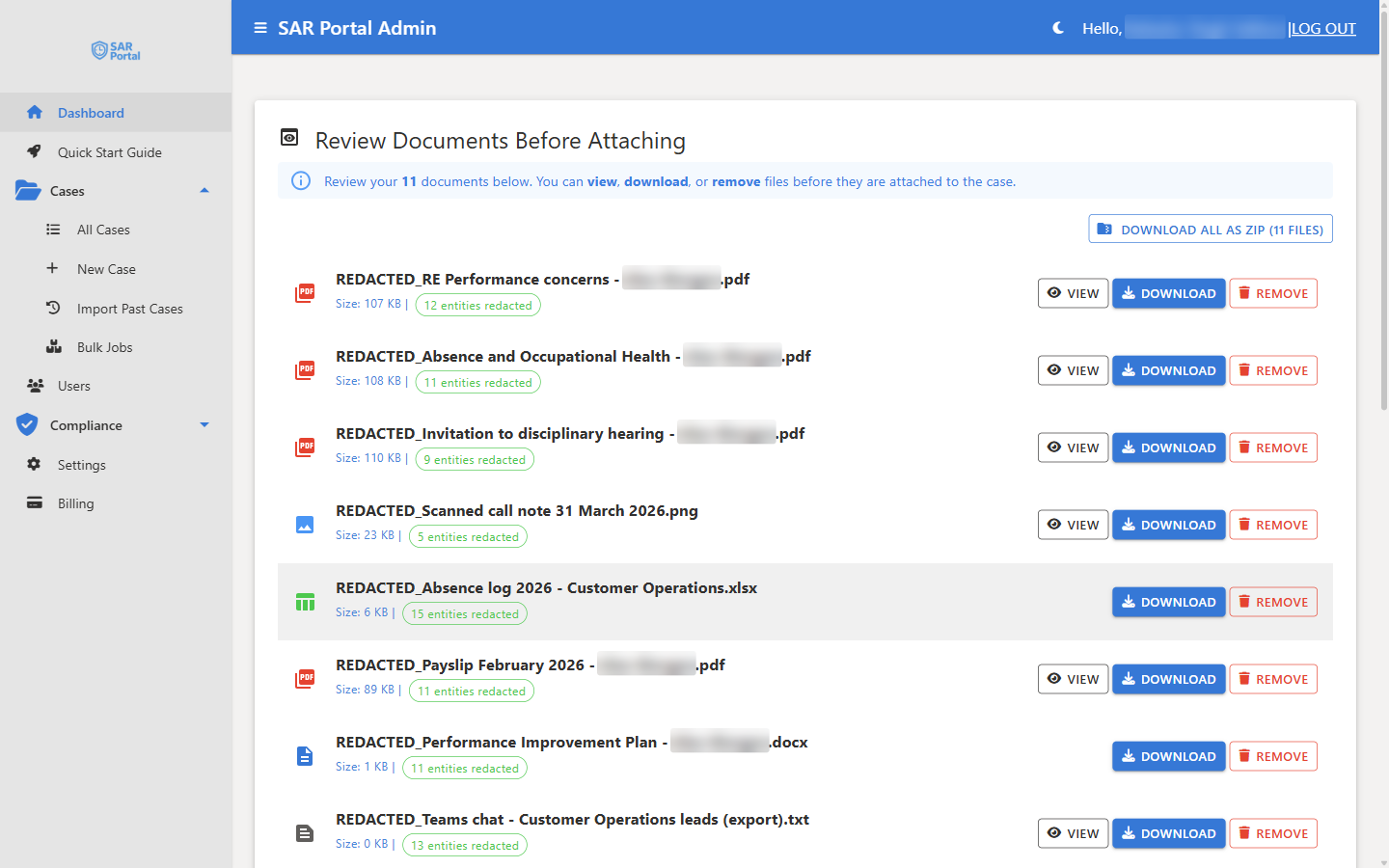
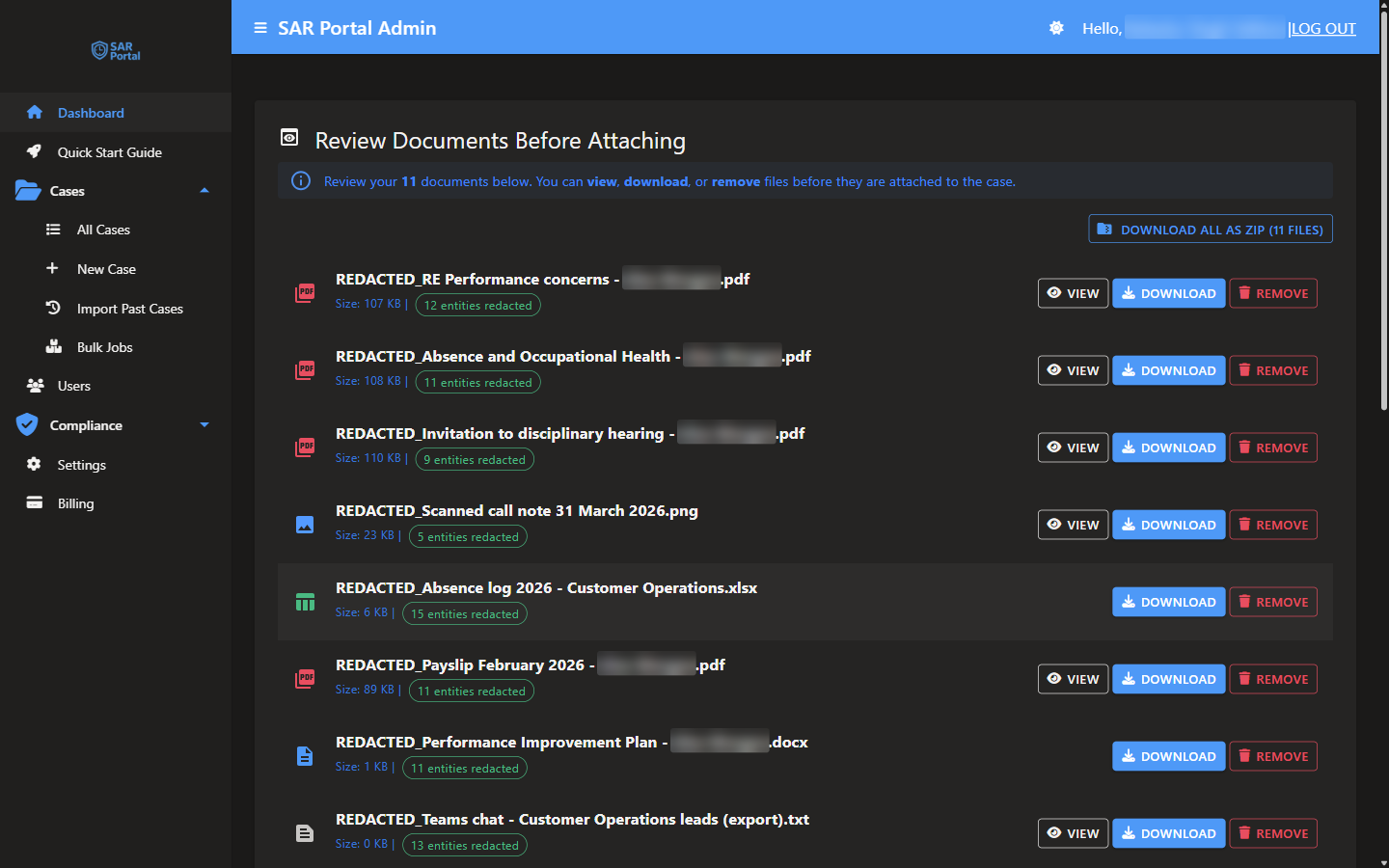
On Review Documents Before Attaching, click Add More Files to choose another set of files. They go through the same scan and review, then join the files already waiting. The Include email attachments switch, and Skip redaction for this upload if your organisation allows it, sit under the button when they apply, and affect only the files you add next.
Where bulk processing is turned on (Enterprise), Add ZIP Archive sits next to it. See Bulk ZIP Jobs.
Held Back Files
Files that are not safe to attach as they are appear under Held back — not included (n). They are not attached, downloaded or saved.
| Label | Why |
|---|---|
| Not checked for personal data | The check could not run on this file, for example a WebP image, a file that could not be read, or because your page allowance for this billing period is used up (or could not be checked) |
| Redaction failed — personal data not removed | The selected items could not be redacted |
| Personal data still visible after redaction | Some selected items were still found after redaction |
When the page allowance stopped the check, a file you include with Include anyway is then marked “Not checked – page allowance used up” (or “Not checked – allowance check unavailable, try again” when the allowance could not be checked).
Each file has two buttons:
- Include anyway - move the file into the files to attach. Do this only if you will redact it yourself before sharing, for example with Adding Redactions by Hand.
- Remove - drop the file from this upload.
See Page Allowance for how pages are counted.
Pause & Resume Later
Click Pause & Resume Later on Review Documents Before Attaching to save the review and leave. The case page then shows a Paused Redaction Workspace banner with the files waiting. Click Resume to carry on, or Discard to drop them. Nothing is attached to the case until you resume and click Confirm & Attach to Case (n).
While a workspace is paused, the case’s Request Info, Submit Info and Close Case actions are disabled. Complete or discard the paused workspace first.