AI Insights
The AI Insights card on each case page helps you decide what to do next and check that your response is complete before you send it. One click runs the review:
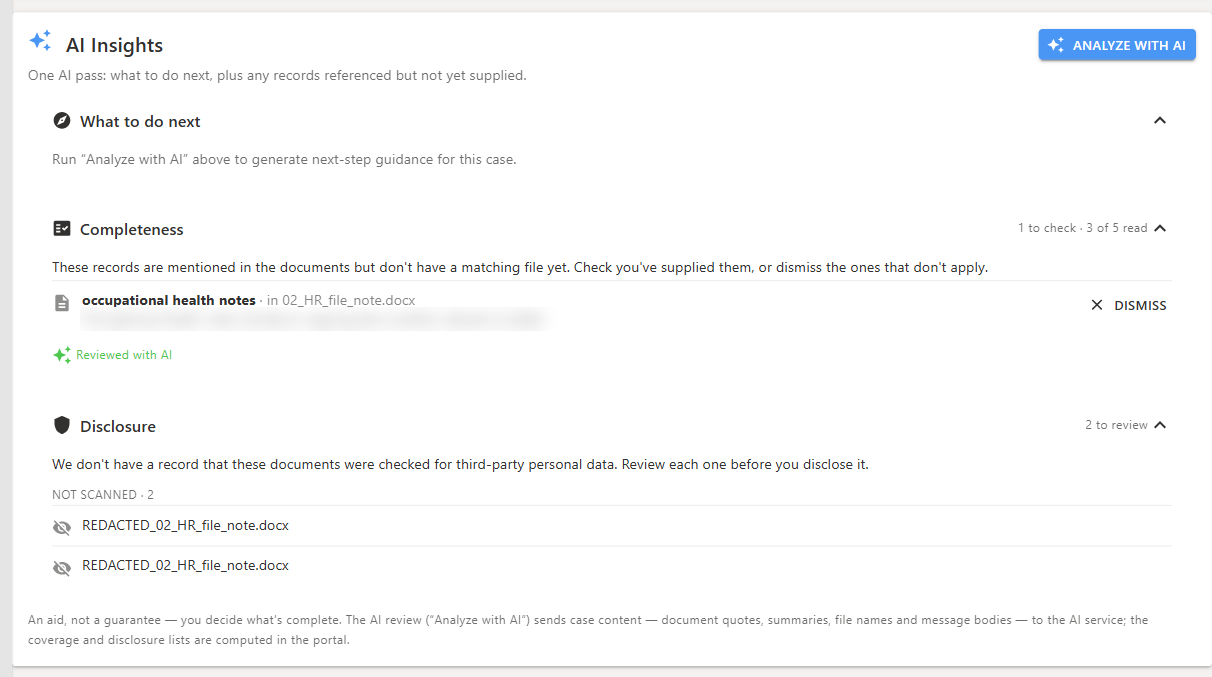
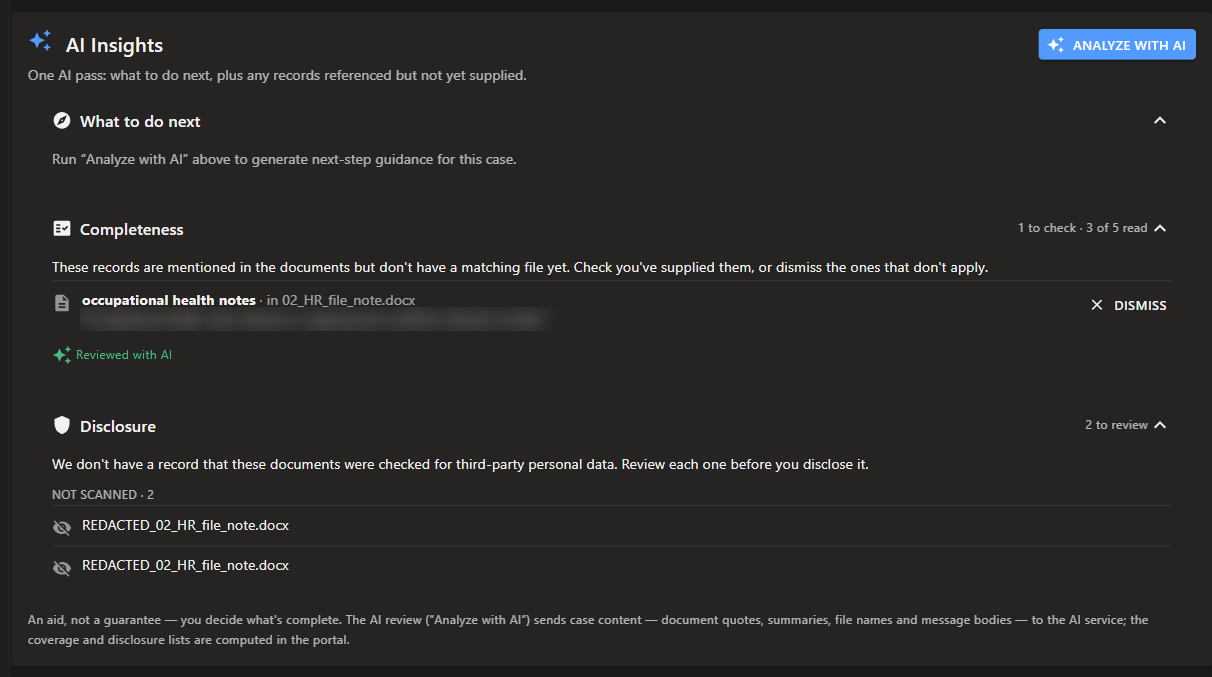
“One AI pass: what to do next, plus any records referenced but not yet supplied.”
Who Can Use It
| Plans | All plans, including trials |
| Users | Anyone in your team who can open the case |
| Where | The AI Insights card near the top of the case page (/casesummary/{id}) |
AI Insights is guidance, not legal advice. As the card says: “An aid, not a guarantee — you decide what’s complete.”
Running the Review
- Open the case.
- In the AI Insights card, click Analyze with AI.
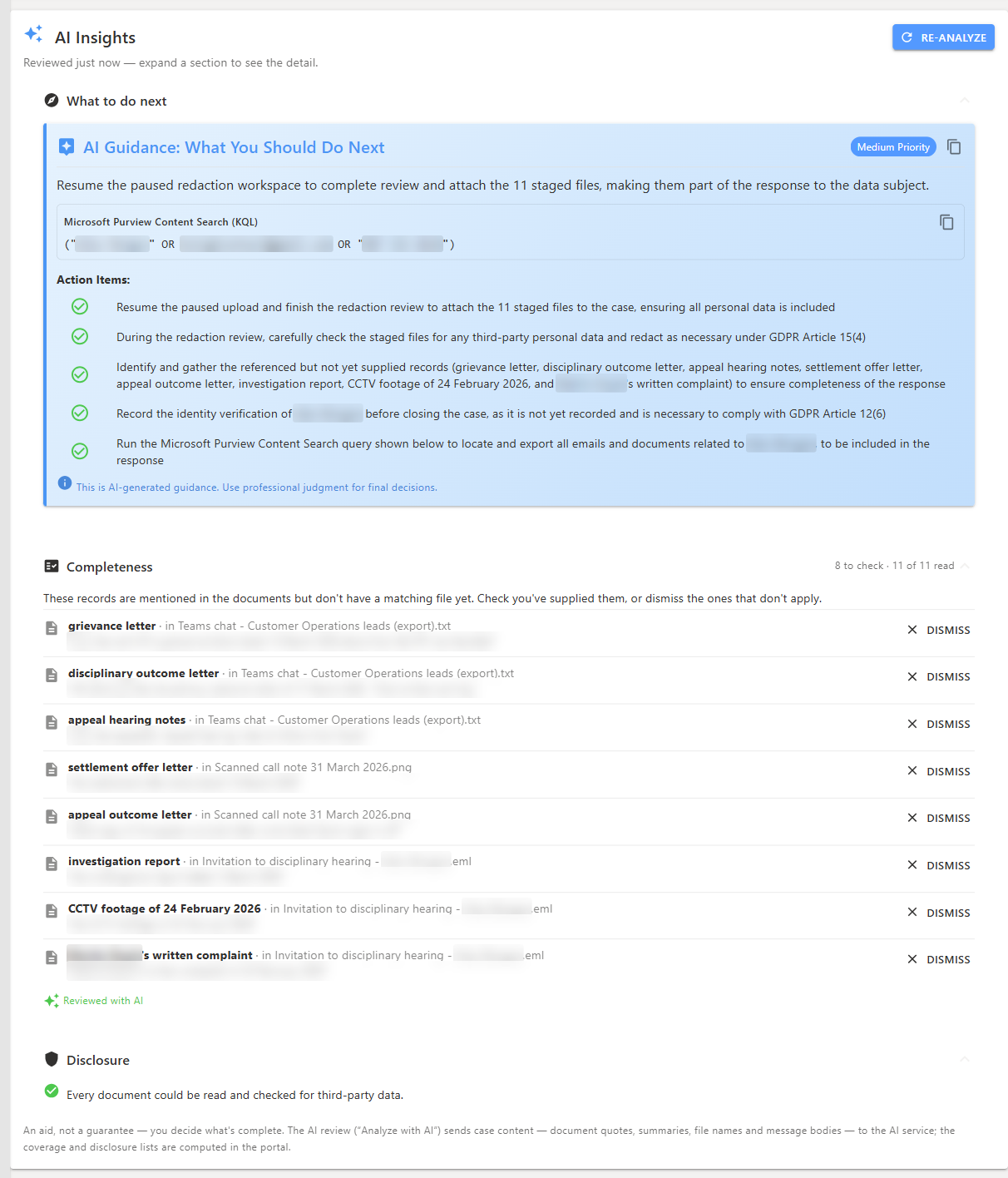
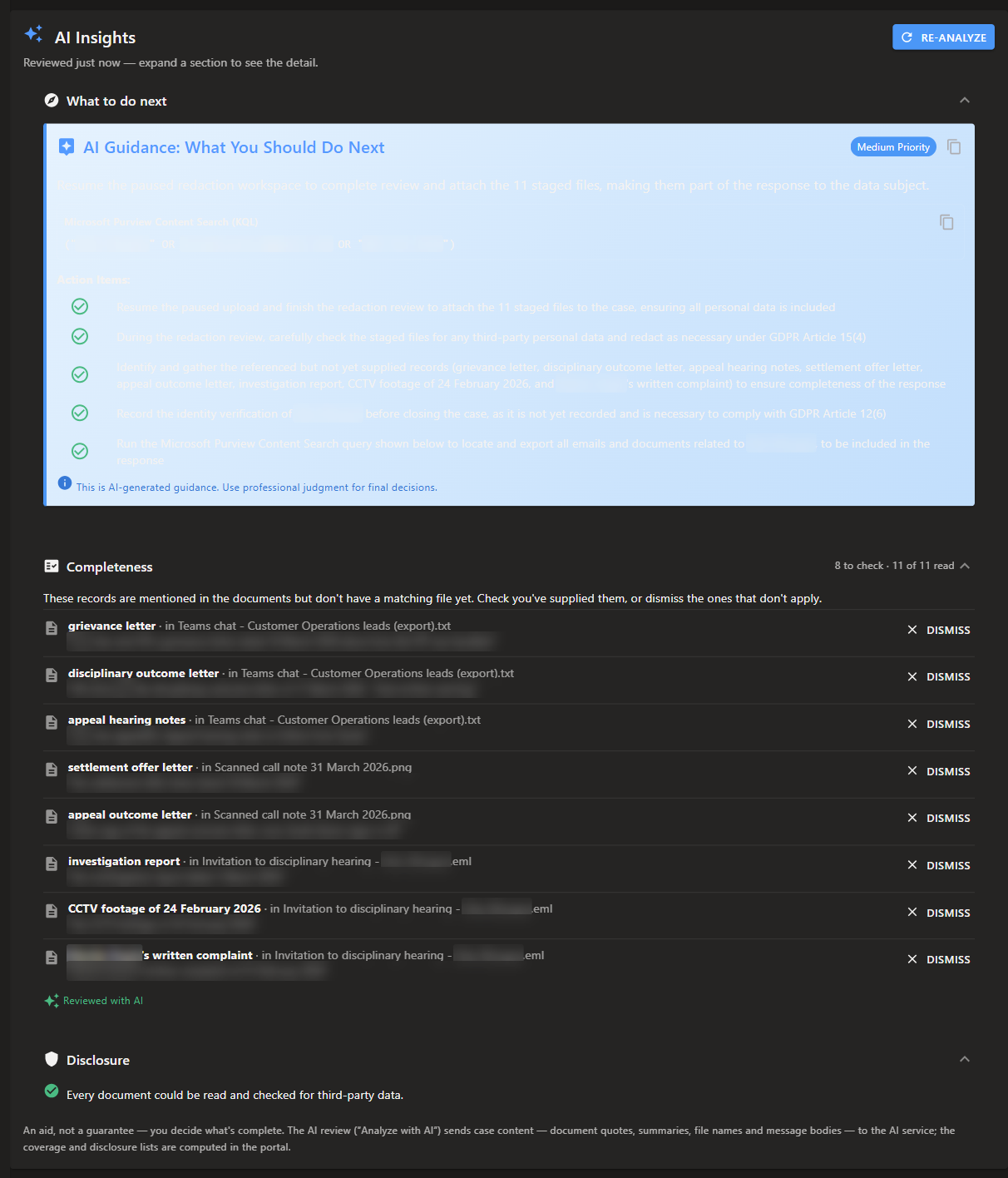
- When it finishes, the card reads “Reviewed just now — expand a section to see the detail.” Expand What to do next, Completeness or Disclosure.
- After you add documents or the case moves on, click Re-analyze to run it again.
The card has three sections, which you can open and close separately.
What to Do Next
This section holds an AI Guidance: What You Should Do Next card with:
- A priority chip (for example “Medium Priority”)
- A short summary of the next step
- Action Items: a checklist for the case. It can cover the identity check, the request text, the redaction review, records still to gather, and the supplementary information under Article 15(1) to give in your reply
- A copy button, to copy the guidance
If your organisation selected Microsoft Purview (eDiscovery) under Settings > Integrations > Systems & Integrations, the guidance also includes a ready-to-run Microsoft Purview Content Search (KQL) query, with its own copy button. See Your Systems (AI Guidance).
Every guidance card ends with “This is AI-generated guidance. Use professional judgment for final decisions.”
Completeness
This section lists records that your documents mention but that do not have a matching file on the case yet, for example “settlement offer letter” or “investigation report”. Each item shows the document it was found in and the quoted text.
- The section heading shows a summary such as 7 to check · 11 of 11 read: the number of records to check, and how many of the case’s documents could be read.
- Check that you have supplied each record. If one does not apply, click Dismiss. Dismissed records stay hidden when you re-analyze.
- Eight items are shown at first. Click Show all n to see the rest, and Show fewer to collapse the list.
- When nothing is missing, you see “Every referenced record matched a supplied document.” If some documents could not be read, the message covers only the documents that were read, and tells you to check Disclosure.
- After the AI review, the section shows Reviewed with AI. If the AI check could not run, it shows AI check unavailable with the reason.
Files in a paused redaction workspace are not attached to the case yet. They are covered once you resume the workspace and add them.
Disclosure
Under Article 15(4), the copy you send must not adversely affect other people. This section lists the case’s documents that could not be checked for third-party personal data, so you can review them by hand before you disclose them. Documents are grouped by reason:
- Not scanned
- Couldn’t be read
- Redaction didn’t complete
The heading shows how many need review, for example 2 to review. When the list is long, a Filter by file name box appears. After Analyze with AI, the section can add advice about the unscanned documents, marked Based on the file names only because their content was not scanned.
When every document could be checked, you see “Every document could be read and checked for third-party data.” The section never says a document is safe to disclose.
Closed Cases
On a closed case, the card is read-only: “This case is closed — showing the completeness and disclosure check as a read-only record.” The Analyze with AI button is hidden and no new guidance is created. Once a case is anonymized and its documents removed, the card no longer appears.
AI Usage and Your Data
- AI Insights does not count against your page allowance. That allowance covers document processing, such as redaction and text extraction.
- It does count towards your plan’s overall AI usage limit, which the Billing page shows as a percentage. See Usage & Limits.
- The Completeness and Disclosure lists are worked out in SAR Portal itself. Only Analyze with AI sends case content (document quotes, summaries, file names and message bodies) to the AI service.
Related
- Case Actions - Everything else on the case page
- Case Warnings and Banners - Attachments that could not be imported
- AI-Powered Redaction - Redacting third-party data before disclosure
- Your Systems (AI Guidance) - Tell the AI which systems you use