Compliance Verification
SAR Portal provides tools to prove your GDPR compliance, especially important when facing disputes or regulatory inquiries.
What is Compliance Verification?
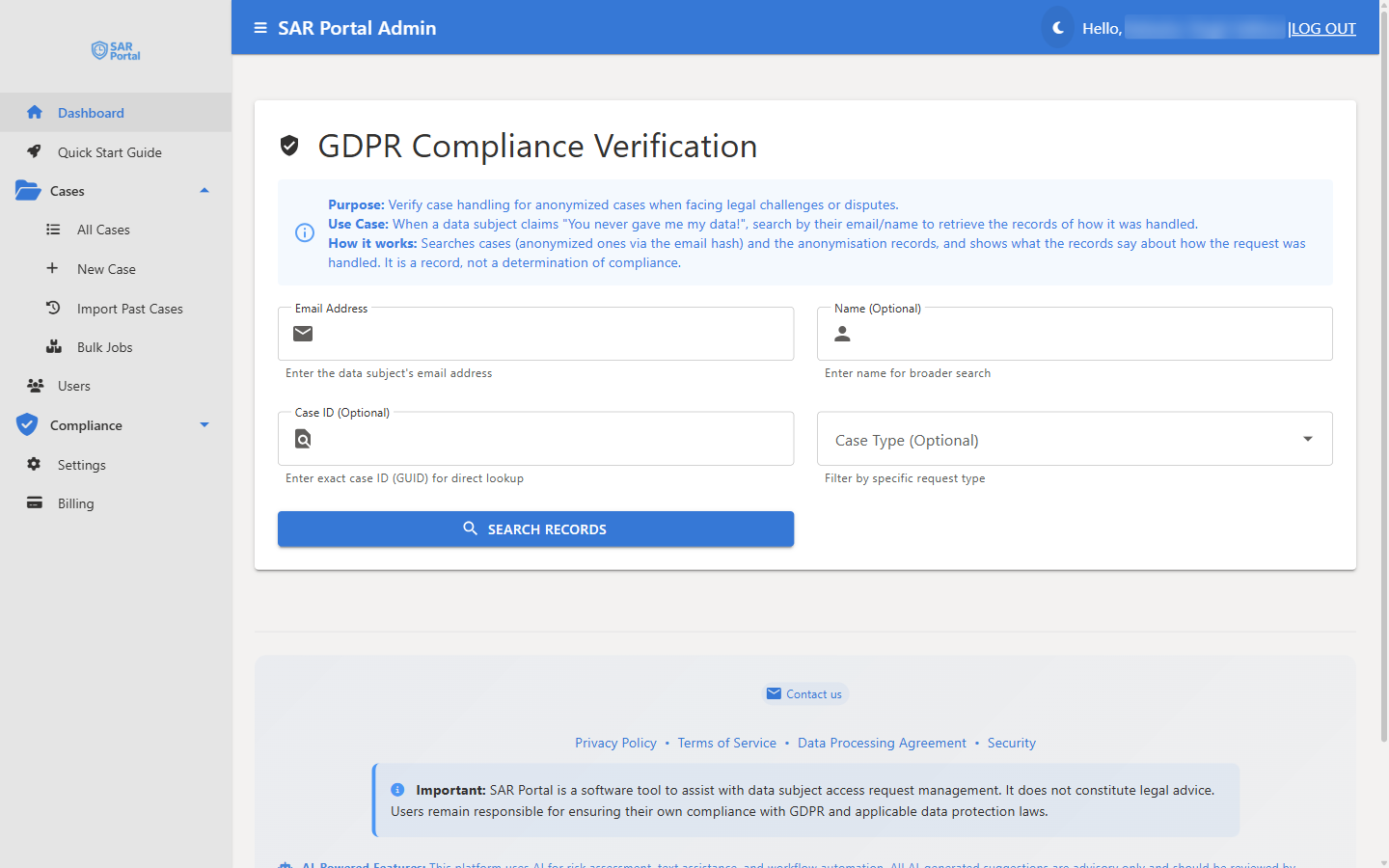
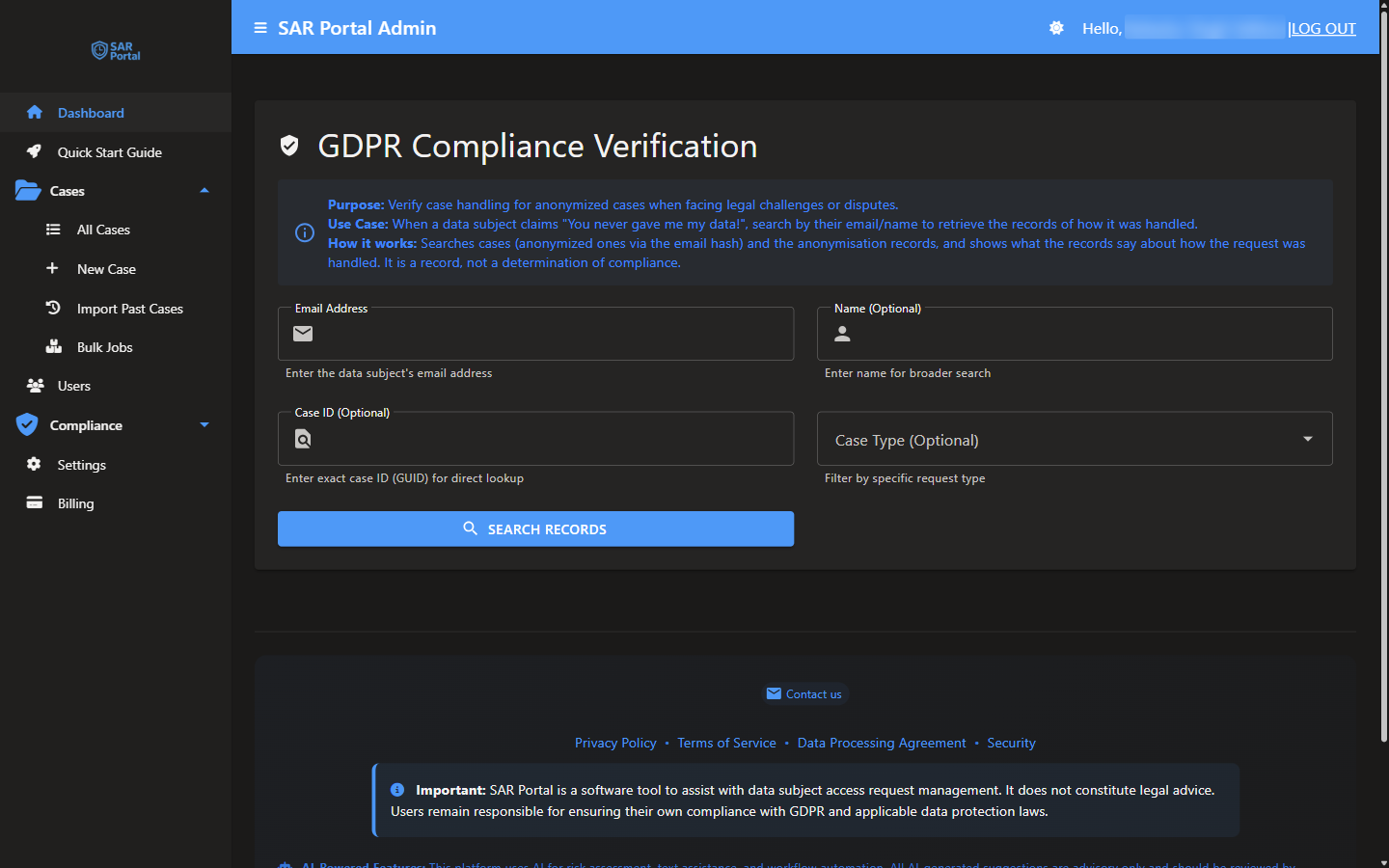
The Compliance Verification feature allows you to search for and retrieve evidence that you properly handled data subject requests, even after cases have been anonymized. It shows what your records say about how a request was handled. It is a record, not a determination of compliance.
Who Can Use It
Admins and Case Managers can open the page. The Compliance > Verification menu item appears only for Admins; a Case Manager opens the page directly at /compliance-verification. Reviewers and Read Only users cannot use it.
Why You Need This
Common Scenario
A data subject contacts you claiming “You never responded to my request” or “You never deleted my data as I asked.”
Your Response
Using Compliance Verification, you can:
- Search by their email address
- Find matching anonymized records
- Prove the request was handled
- Show the completion evidence
How It Works
Email Hash Matching
When cases are closed and anonymized:
- Personal details are removed
- We keep a one-way code made from the email (a hash) so you can prove the request was handled
- A hash is pseudonymised data, so it is still personal data under GDPR
Search Process
- Go to Compliance > Verification
- Fill in at least one of Email Address, Name or Case ID. You can also pick a Case Type to narrow the search:
- Email Address - the data subject’s email address. This is the only way to find anonymized cases
- Name (Optional) - for a broader search
- Case ID (Optional) - the exact case ID (a GUID) for direct lookup
- Case Type (Optional) - limit the search to one request type
- Click Search Records (it shows Searching… while it runs)
What You’ll Find
When records are found, the page shows Records Found and the email hash used for the search. Each case card shows:
- Case Type, Status and Legal Basis
- Created date
- Contact, or Contact (Anonymized) for an anonymized case. For a case that is not yet anonymized, this shows the requester’s name and email
- Timeliness - whether the response was on time
- Closure Information - when and by whom the case was closed, the data availability window, any refusal ground with its legal provision, and whether the rights notice (complaint under Article 77, judicial remedy under Article 79) was sent
- Identity Verification (Article 12(6)), Extension History (Article 12(3)) and, for UK cases, the stop-the-clock history
- Anonymized At and Anonymized By, and the email hash
Below the case cards you may also see:
- Document Integrity Chain of Custody - SHA-256 hashes of documents made available to the subject, submitted by the subject and downloaded from the portal
- Email Notification Records - the emails sent to the subject and whether they were delivered
- Anonymisation Records - records written when a case was anonymised, identifying the subject by email hash
- Audit Trail Architecture - how the audit records are protected, and the limits of that protection
Verification Results
Match Found
If a matching case exists:
- Confirmation that request was handled
- Date of completion
- Type of request
- Final status
No Match Found
The page shows No Records Found. This could mean:
- The email or name does not match any case in your organization (a different email address may have been used)
- The case has not been created yet
- The case was created before the audit system was in place
Using Verification for Disputes
Regulatory Inquiries
When a supervisory authority asks about a specific request:
- Obtain the subject’s email from the inquiry
- Run verification search
- Provide the audit trail evidence
- Demonstrate proper handling
Subject Complaints
When a subject claims you didn’t respond:
- Verify their email address
- Search for matching records
- If found, explain when/how you responded
- If not found, check for pending cases
Legal Proceedings
For legal evidence:
- Audit entries are time-stamped by the system and no user can edit or delete them
- Full action history available
- Whether they are accepted as evidence is for your lawyers and the court
Audit Trail Integration
The page does not link to the Audit Logs page. The Download Report (PDF) includes the audit trail of each case found, and you can filter the Audit Logs page by date, action and entity type to see the entries yourself.
Privacy Considerations
What’s Stored
- A one-way hash of the email (pseudonymised data, still personal data under GDPR)
- Case metadata
- Audit trail, including your staff’s names and emails
What’s NOT Stored (After Anonymization)
- Subject’s name
- Original email address
- Phone number
- Personal notes
Why This Approach
Balances:
- Your need to prove compliance
- Subject’s right to erasure
- Legal requirement to maintain records
Best Practices
During Case Handling
- Document all actions thoroughly
- Use the timeline feature
- Record communication details
- Note verification methods used
For Record Keeping
- Cases anonymized 30 days after closure (unless on legal hold)
- Audit log entries kept for 7 years (indefinitely while the case is on legal hold)
- Hash enables future verification
- The requester’s name, email and phone are removed; the email hash is kept
For Disputes
- Respond promptly to inquiries
- Provide audit evidence
- Explain the hash verification process
- Offer to demonstrate the system
Compliance Evidence
After a search that finds records, click Download Report (PDF) to create a compliance verification report. It contains:
- The search criteria and a verification summary
- The case records found
- The document chain of custody
- Email notification records
- Anonymisation records
- The case audit trail
- A description of how the audit trail works
You can also export a single case as a PDF from the case page, and the Audit Logs page exports entries as CSV.
Use these for:
- Internal compliance reviews
- Regulatory submissions
Related Features
- Audit Logs - Detailed activity tracking
- Data Retention - How long records are kept
- GDPR Articles - Legal reference guide
- Case Actions - Manual anonymization and legal hold