Branding & Portal
The Branding & Portal settings let you customize how your public portal and your emails to data subjects look.
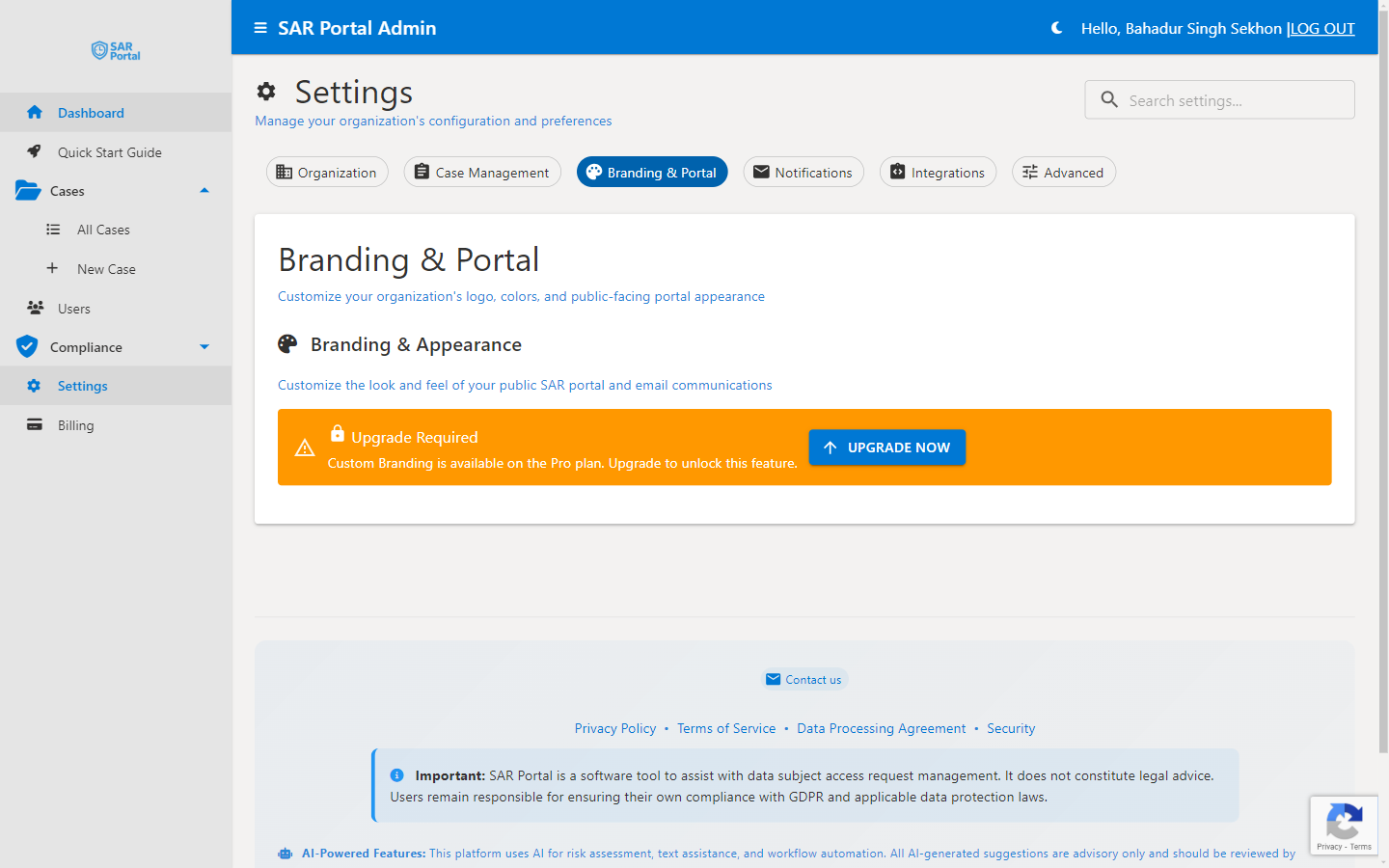
Accessing Branding Settings
- Go to Settings in the sidebar
- Click the Branding & Portal tab
- Make your changes
- Click Save Branding Settings
Company Logo
Upload Your Logo
- Click the file picker and choose your logo file
- Supported formats: PNG, JPG, SVG, GIF, WEBP, BMP, TIFF, ICO
- Recommended: PNG or SVG with a transparent background
- Recommended size: 400 x 120 pixels (landscape works best)
- Maximum file size: 2 MB
Once a logo is uploaded, the tab shows it under Current Logo with a Remove Logo button.
Logo Display
Your logo appears in:
- The public portal header
- Email headers (scaled to 200 x 60 pixels)
Show Company Name With the Logo
After you upload a logo, the switch Show company name below logo on public portal appears. Turn it off to show only the logo, which suits logos that already include your name.
Logo Tips
- Use high resolution for clarity
- Ensure it is readable on both light and dark backgrounds
Primary Color
Your main brand color. On the public portal it is used in headings, the subtitle text and accent elements, and in emails for buttons and links.
How to Set:
- Use the color picker, or type a value in Hex Color Code (for example
#1976d2) - Check the preview button
- Click Save Branding Settings
Color Recommendations
- Choose a color with good contrast
- Avoid very light colors (poor visibility)
- Match your website branding
Navigation Bar Color
Sets the background color of the top bar on your public portal, the page data subjects see. It does not change the admin app. Choose a color that contrasts well with white text.
Font Family
Choose the font for your public portal. The options are Roboto (Default), Arial, Helvetica, Open Sans, Segoe UI, Georgia, Times New Roman and Courier New. A preview shows how text will look.
Email Footer
Email Footer (Plain Text) is custom footer text for your emails and your public portal.
- Plain text only: HTML tags are removed
- Up to 500 characters; line breaks are kept
- URLs and email addresses become clickable links automatically
- A preview shows how the footer will appear
Quick Templates add a ready-made line to your footer with one click, using your company details:
- A copyright line with the current year and your company name
- Your contact email
- A link to your privacy policy
- “For questions or to opt out, contact us at the email above.”
System Footer
SAR Portal always adds a short system footer to emails. It discloses that SAR Portal processes data subject requests on behalf of your organization, as GDPR Article 28 requires a data processor to be identified. This footer cannot be turned off.
Resetting
Reset to Defaults sets the primary color and navigation bar color back to #1976d2, the font back to Roboto and clears the email footer. Click Save Branding Settings to keep the reset.
Managing Your Public Portal
The public portal URL and its settings are not configured here. Portal URL management, including testing the portal, generating embed code, creating additional URLs and setting expiry, lives in the Integrations tab. The portal submission URL has the format:
https://app.sarportal.com/subjectaccess?token={token}
Best Practices
Brand Consistency
- Match your website colors
- Use your official logo version
- Maintain a professional appearance
Accessibility
- Ensure sufficient color contrast
- The logo should be recognizable
- Text should be readable
Related Settings
- Public Portal Customization - How branding appears to requesters
- Notifications - Email templates that use your branding
- Organization Settings - Company details and email signatory