Importing Past Cases
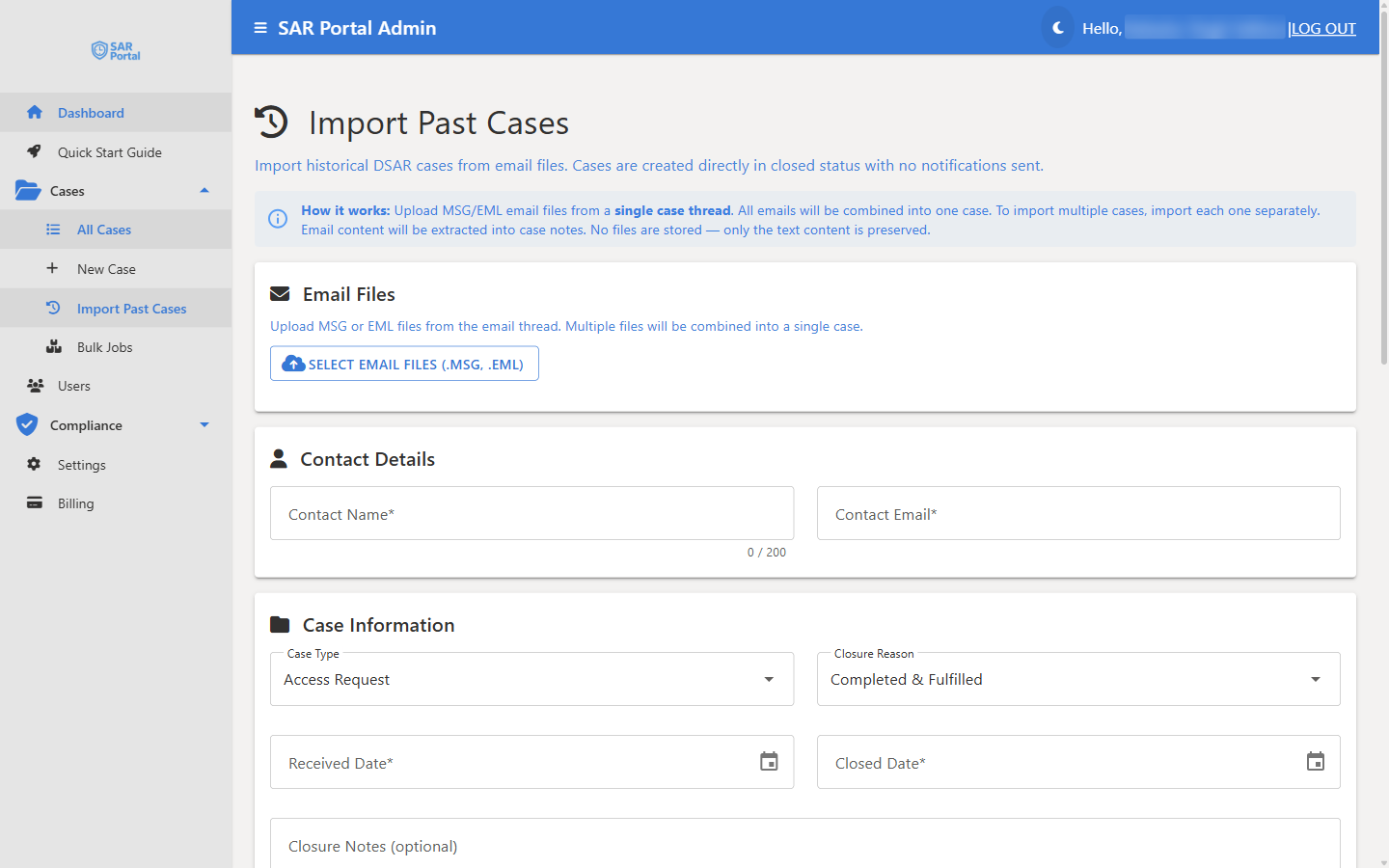
Import Past Cases lets you bring requests you handled before you started using SAR Portal into your case records. You upload the email thread for one old request, and SAR Portal creates a case that is already closed.
“Import historical DSAR cases from email files. Cases are created directly in closed status with no notifications sent.”
Who Can Use It
| Plans | Pro and Enterprise. On other plans the page shows an upgrade prompt for “Historical Case Import” |
| Roles | Admins and Case Managers. Reviewers and Read-Only users do not see the menu link |
| Where | Sidebar → Cases → Import Past Cases (/cases/import) |
If your subscription is restricted (for example a payment is overdue), the page shows a restriction message and you cannot import.
How It Works
- One case per import. Upload the emails from a single case thread. All the emails are combined into one case. To import several old requests, import each one separately.
- Text only. The email text is saved as the case notes. “No files are stored — only the text content is preserved.” Attachments are not imported.
- Closed straight away. The case is created in the closed status you choose. No emails are sent to the requester.
- Counts as a case. An imported case counts towards your plan’s monthly case limit. See Creating Cases.
Step by Step
1. Upload the Emails
- Click Select Email Files (.msg, .eml) and choose the files from the thread. You can select up to 50 files.
- SAR Portal lists the emails, sorted by date. Each one shows its subject, sender and date; expand it to see the recipients.
- AI reads the thread and shows a short AI analysis summary, with a Note if the emails do not look like a data protection request or do not look finished. It also suggests a case type, closure reason and contact details. Check them in the next steps.
- To start again, click Clear All.
If some emails have no date, SAR Portal asks you to set the Received Date and Closed Date yourself.
2. Contact Details
SAR Portal fills these in from the sender of the earliest email. Correct them if the sender was not the data subject.
- Contact Name (required)
- Contact Email (required)
3. Case Information
- Case Type - the request type. Only the types enabled in Settings > Case Management are listed
- Closure Reason - how the request ended, for example Completed & Fulfilled or No Data Found
- Received Date - when the request arrived (filled in from the earliest email; it cannot be in the future)
- Closed Date - when you finished it (filled in from the latest email; it cannot be before the Received Date or in the future)
- Closure Notes (optional)
When you set the Closed Date, SAR Portal compares it with your case retention period. If the case closed longer ago than your retention period, it warns you to consider whether the import is needed. Otherwise it confirms that the case will be anonymized 30 days after import.
4. Legal Hold (Optional)
Turn on Place on Legal Hold to stop the case from being anonymized and deleted. Then enter a Reason and choose a Hold Duration:
- 6 months
- 1 year
- 2 years
- 3 years
- Until retention period expires
- Until manually released
A hold with a set duration releases itself at the end of it. “Until manually released” stays until an Admin releases it.
5. Check the Notes Preview
The Notes Preview shows the text that will be saved as the case notes, with its size in characters. The notes are limited to 500KB. If the emails are longer, SAR Portal cuts them and warns you that some later emails were left out. Remove emails you don’t need, or split the thread.
6. Review and Import
The Import Summary lists the contact, case type, dates, closure reason, number of emails and legal hold. The Anonymization row shows “30 days after import”, or “After legal hold expires” if you placed a hold.
Click Import Case. If something is missing (for example a date), a message above the button tells you what to fix.
After Import
The case appears in your Cases list with the closed status you chose. Like any closed case, it is read-only. Its contact details are anonymized 30 days after import unless it is on legal hold. See Case Statuses for what happens after closure.
Related
- Creating Cases - Create a new case for a current request
- Case Statuses - Closed statuses and retention
- Case Actions - Legal hold and anonymization on closed cases
- Plans & Pricing - Which plans include Historical Case Import