Integrations
The Integrations tab has two parts:
- Public Case Portal: the secure URLs data subjects use to submit and track requests.
- External Systems: the systems where you hold personal data, used for AI guidance. See Your Systems (AI Guidance).
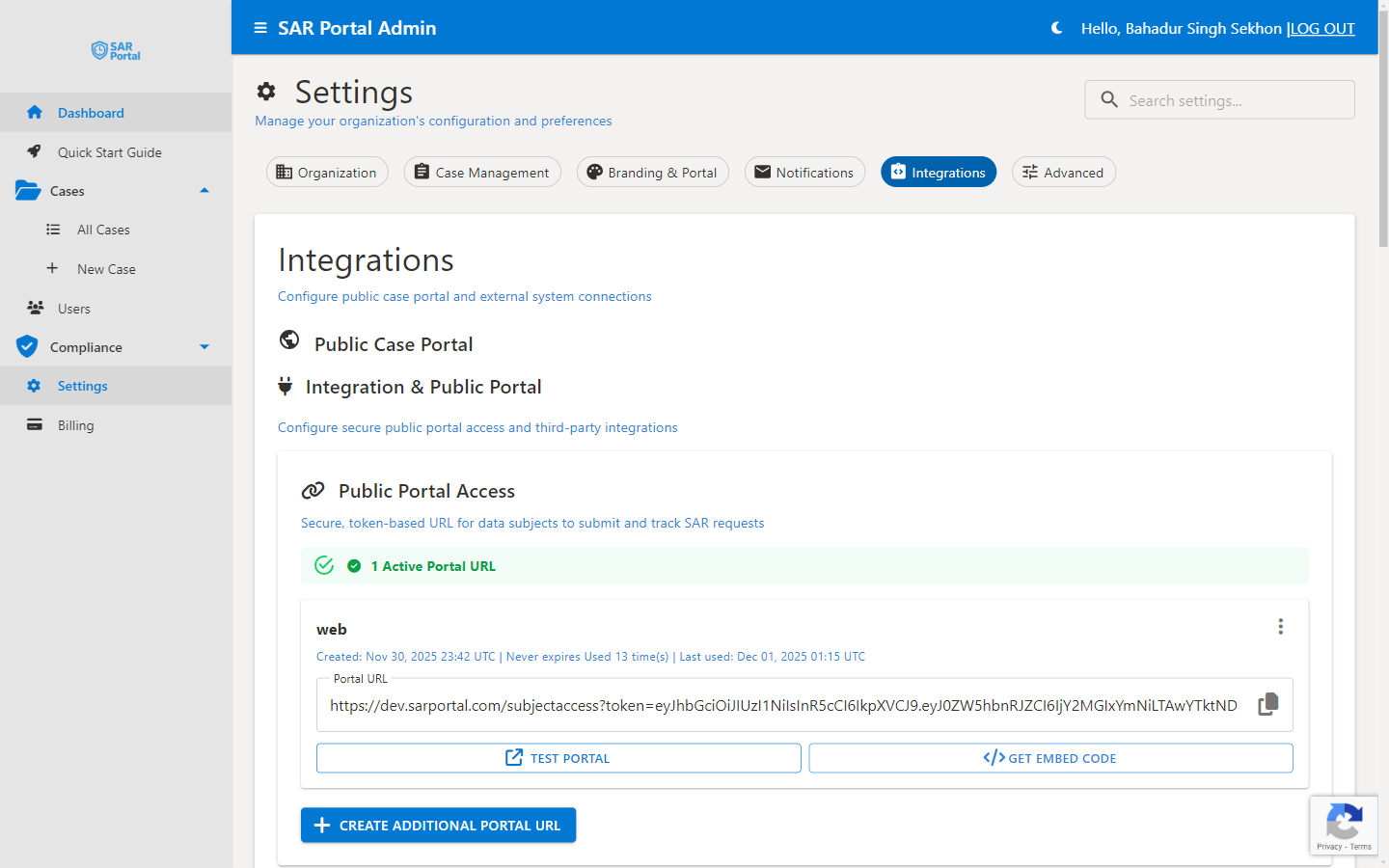
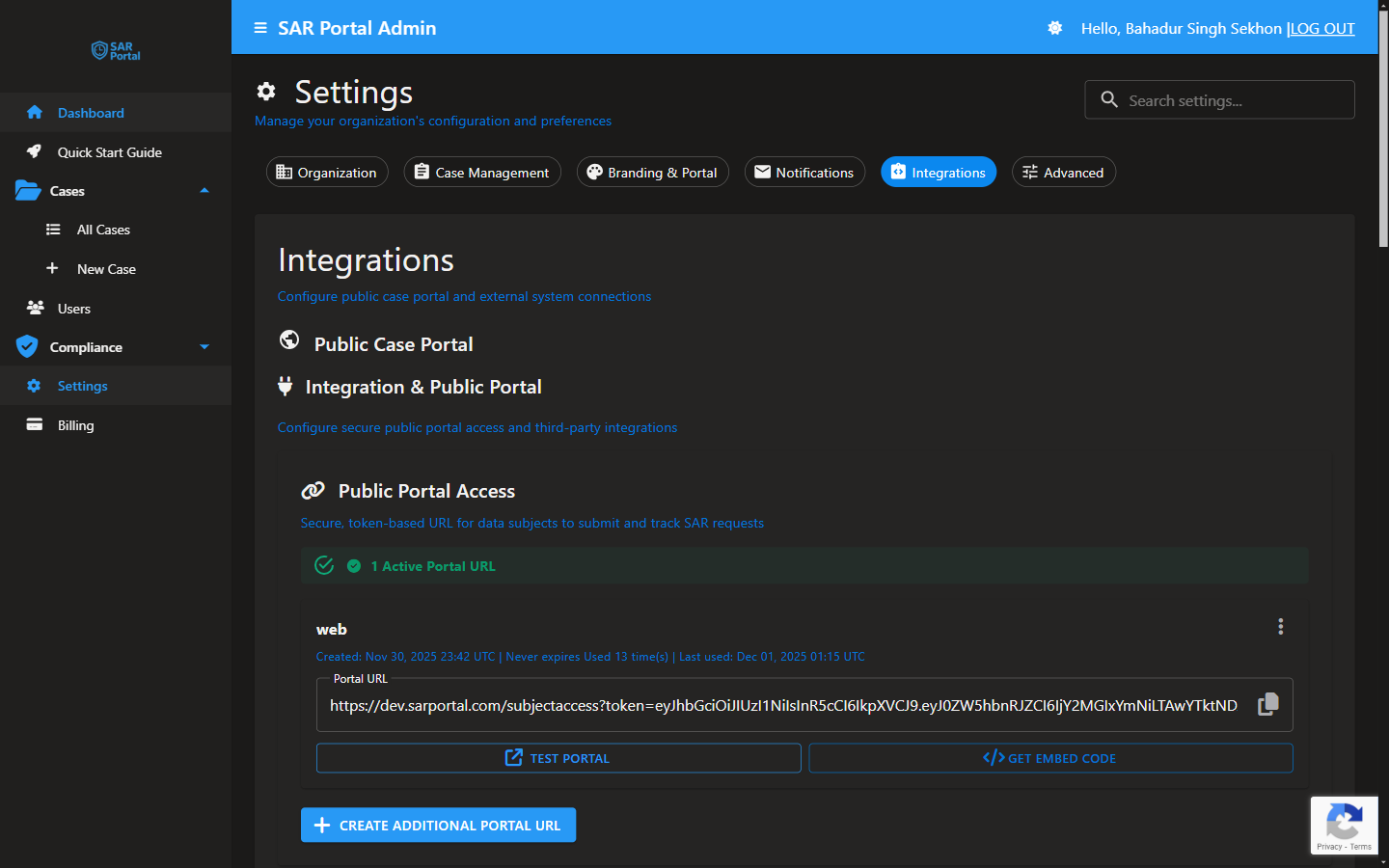
Like all Settings, this tab is for Admins only. It is available on every plan.
Public Case Portal
The Public Case Portal allows data subjects to submit and track their SAR requests directly.
Public Portal Access
Your portal URL is a secure, token-based link that data subjects use to:
- Submit new SAR requests
- Track the status of existing requests
- Provide additional information when requested
The portal submission URL has the format:
https://app.sarportal.com/subjectaccess?token={token}
The token does not expose your organization’s internal ID.
Managing Portal URLs
- Go to Settings > Integrations
- Under Public Portal Access, view your active portal URLs. Each shows its label, created date, expiry and, once used, how often and when it was last used
- Click the copy icon in Portal URL to copy the link
- Click Test Portal to preview how subjects see it
- Click Get Embed Code to embed the portal on your website
Get Embed Code offers three tabs:
| Tab | What you get |
|---|---|
| iFrame (Embedded) | The portal inside a page on your site, with no logo or footer, for pages that already carry your branding |
| Direct Link (Standalone) | A plain link for your privacy policy or footer. Opens in a new tab with full branding |
| Button (Standalone) | A styled button for your website. Opens in a new tab with full branding |
See Embedding the Portal for more.
Creating Portal URLs
If you have no active URL, click Generate New Portal URL. If you already have one, click Create Additional Portal URL. In the dialog:
- Enter a Label (Optional), for example “Main Portal” or “Campaign 2024”
- Choose an Expiration: Never expires, 30 days, 90 days, 1 year or Custom date
- Click Generate URL
Token History
The Token History table lists every portal URL, active or not:
| Column | Shows |
|---|---|
| Status | Active, Expired or Decommissioned |
| Label | The label you gave it, or “No label” |
| Created | Date and time created |
| Expires | Expiry date and time remaining, or Never |
| Usage | Number of uses and the last use |
| Actions | Decommission (active URLs) and Delete permanently |
- Decommission immediately stops the URL working. Data subjects can no longer use that link to submit or track requests. You can generate a new one afterwards.
- Delete permanently removes the token record. This cannot be undone.
Portal URL Best Practices
- Add your main portal URL to your privacy policy
- Create time-bound URLs for specific campaigns
- Monitor usage to see which channels bring in requests
- Decommission a URL straight away if it is compromised or no longer needed
External Systems
The Systems & Integrations card under External Systems lets you tick the systems where your organization holds personal data (for example Outlook / Microsoft 365, Salesforce, Zendesk or Microsoft Purview (eDiscovery)) and add your own. The AI guidance on each case then names those systems. These are not live connections: SAR Portal does not read from or write to them. See Your Systems (AI Guidance).
Available Integrations
Current Integrations
| Integration | Status | Plans |
|---|---|---|
| Public Portal | Built-in | All |
| Stripe (Billing) | Built-in | All |
| Email (SMTP) | Built-in | All |
| Email Notifications | Built-in | All |
SAR Portal has no live connections to third-party systems (such as Zapier, Microsoft 365 or Slack) today. The External Systems list only guides the AI; it does not connect to those systems.
Email Notifications
SAR Portal sends transactional email notifications automatically for key events such as a new case received via the public portal, case status changes, and team member invitations. These emails are sent automatically based on system events and are not individually toggleable. See Email Templates for details on branding and testing them.
API Access
API access is not currently available. We’re exploring this for a future release based on customer demand. If you have integration requirements, please contact support@sarportal.com to discuss your needs.
Email Integration
Built-in Email
SAR Portal sends emails via secure SMTP:
- Notifications to your team
- Communications to subjects
- System alerts
Custom Email Domain
Enterprise customers can use a custom sender address and edit email templates.
Contact support to set this up.
Authentication
Single sign-on (SSO) via Microsoft & Google: your users sign in with their existing Microsoft 365 or Google account. A one-time email code is also available.
No passwords are stored by SAR Portal.
Requesting New Integrations
To request an integration:
- Contact support@sarportal.com
- Describe your use case
- Specify the system you want to integrate
- We’ll evaluate and respond