Dashboard Overview
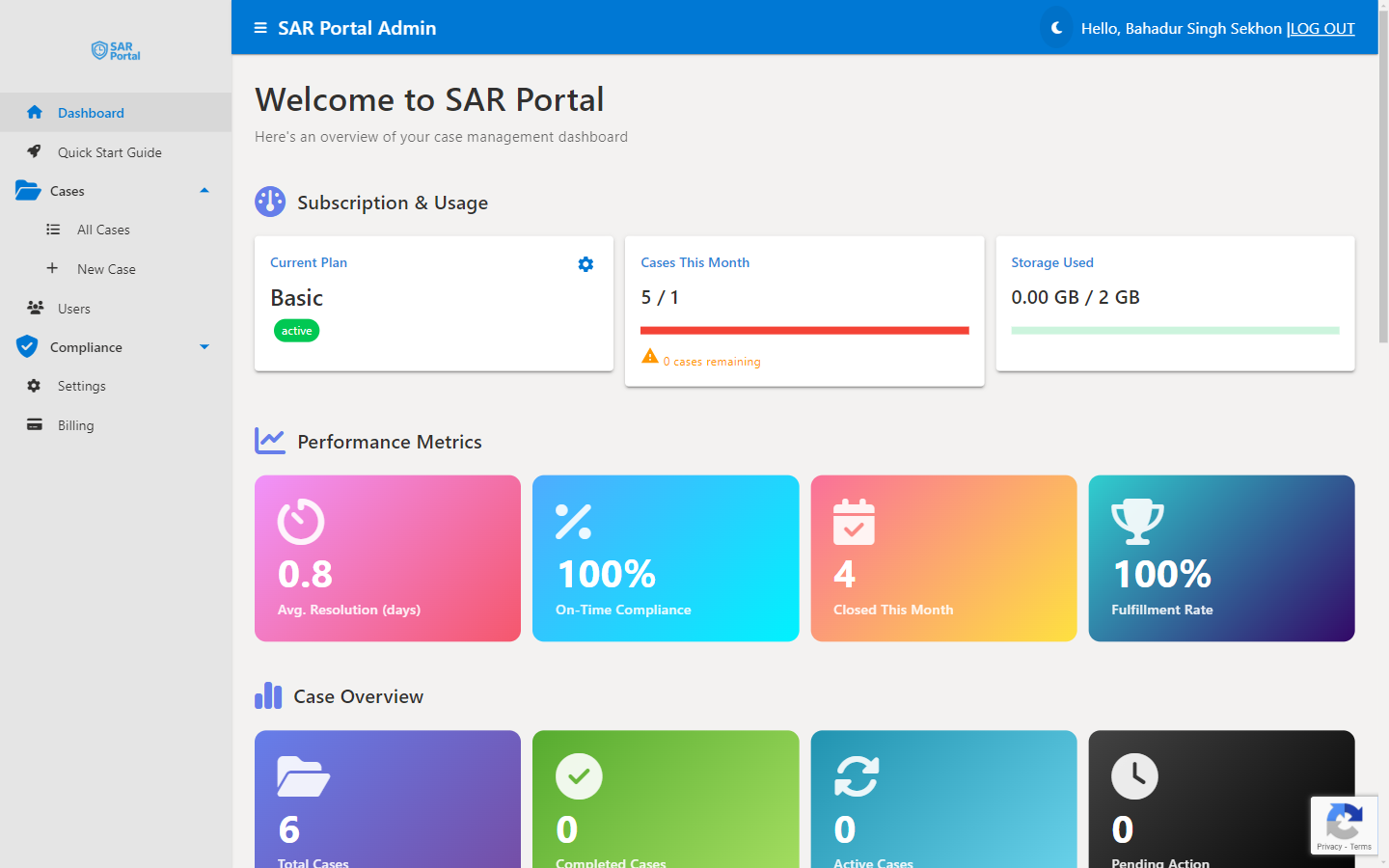
The Dashboard is your command center for DSAR management. It is the first page you see after signing in, and it gives an at-a-glance view of your plan usage, compliance performance, upcoming deadlines and the work waiting for you. Every role can see it.
Trial Banner
If you’re on a free trial, a banner at the top shows:
- The days left in your trial (for example “12 days left in your free trial”), or “Your trial has ended”
- The date and time the trial ends
- A View Plans button (Upgrade Now once the trial has ended) that opens Billing
Subscription & Usage
The top section shows your current plan status:
Current Plan
Displays your subscription tier (Basic, Starter, Pro or Enterprise) with a Free Trial chip during a trial, or the subscription status (for example “active”). The gear icon opens Billing.
Cases This Month
Shows how many cases you’ve created against your monthly limit. The progress bar fills as you approach your limit, and a warning shows how many cases remain once you pass 80%.
- Basic: 1 case/month
- Starter: 5 cases/month
- Pro: 25 cases/month
- Enterprise: Unlimited
Storage Used
Tracks your document storage usage against your plan’s allocation.
- Basic: 2 GB
- Starter: 10 GB
- Pro: 50 GB
Your page allowance for AI redaction is shown on the Billing page, not on the Dashboard.
Performance Metrics
Once you have cases, four tiles show how you are performing:
| Tile | What it shows |
|---|---|
| Avg. Resolution (days) | The average number of days from receiving a request to closing it, across closed cases |
| On-Time Compliance | The percentage of closed cases that were closed on or before their due date |
| Closed This Month | The number of cases closed this calendar month |
| Fulfillment Rate | The percentage of closed cases that were closed as Completed & Fulfilled (rather than rejected, withdrawn and so on) |
GDPR requires a response within one month, extendable by two further months for complex requests.
Upcoming Deadlines (Next 7 Days)
Lists open cases that are due within the next 7 days, earliest first (up to 6 cards). Each card shows the requester’s name, the request type, the case number and the due date, with a chip that reads Due Today, Due Tomorrow or the number of days left. Click a card to open the case. The section is hidden when nothing is due in the next 7 days.
SAR Portal does not email you about upcoming deadlines, so this section is the place to check.
Case Overview
Four counts of your cases:
| Tile | What it counts |
|---|---|
| Total Cases | All cases |
| Completed Cases | Closed cases, whatever the closure reason |
| Active Cases | Cases In Progress, Deadline Extended or Identity Verified |
| Pending Action | Cases Opened, Awaiting Information or with Information Received |
Critical Alerts
Shown only when there is something to act on:
- Overdue Cases - the number of open cases past their due date
- Extended Cases - the number of cases whose deadline has been extended
Use the Cases list filters to find the cases behind these numbers.
Quick Actions
Shortcut cards for common tasks:
- Create Case - Start a new DSAR manually
- View All Cases - Jump to the full cases list
- Company Info - Open Settings > Organization
- Manage Users and Invite User - Admins only, open the Users page
Cases by Status and Cases by Request Type
Two breakdowns show how many cases you have in each status (Opened, In Progress, Completed & Fulfilled and so on) and of each request type (Access Request, Erasure Request and so on).
No Cases Yet
Before your first case, the Dashboard shows “No Cases Yet” with a Create Your First Case button in place of the metrics.
Navigating the Application
Use the sidebar to access different sections:
| Section | Who sees it | Description |
|---|---|---|
| Dashboard | Everyone | Overview and metrics (this page) |
| Quick Start Guide | Everyone | In-app setup guide |
| Cases > All Cases | Everyone | View and manage all DSARs |
| Cases > New Case | Admin, Case Manager | Create a case manually or from an email |
| Cases > Import Past Cases | Admin, Case Manager | Import historical cases from MSG/EML files (Pro and Enterprise) |
| Cases > Bulk Jobs | Admin, when bulk processing is enabled for your account (Enterprise) | Bulk ZIP archive processing |
| Users | Admin | Team management and invitations |
| Compliance (Verification, Audit Logs) | Admin | Verification and audit tools |
| Settings | Admin | Organization and portal configuration |
| Billing | Admin | Subscription, page allowance and payment management |
You can also install SAR Portal as an app so it opens in its own window.
Tips for Using the Dashboard
- Check daily - Make the Dashboard your first stop to catch cases due soon and overdue cases
- Monitor Avg. Resolution and On-Time Compliance - If resolution time is trending up, review your processes
- Watch storage usage - Archive or delete unnecessary documents before hitting limits
- Review team activity - Admins can see every action in Audit Logs (Compliance > Audit Logs)